
FusionDrive app — getting started
FusionDrive is a boost, output and data controller that lives under your dash. The iPhone app is how you set it up, watch it, and tune it. CarPlay puts the essentials on the car's screen. This manual covers every screen and every setting.
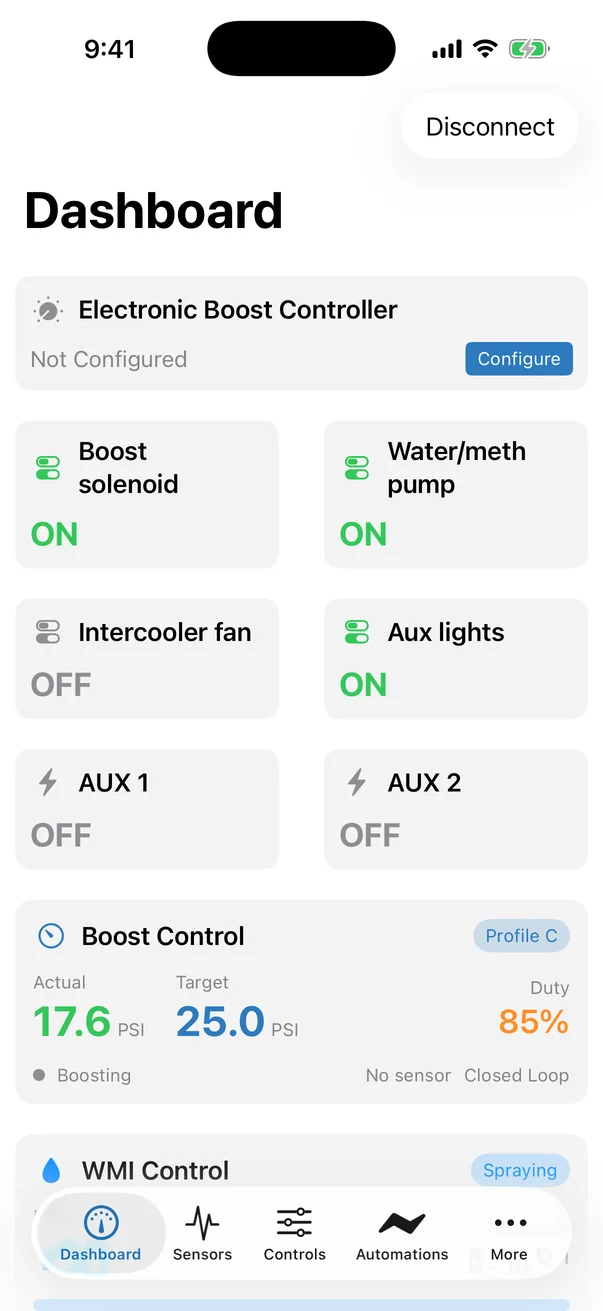

Install the app
- Install the current FusionDrive beta
The current app is distributed through an invited internal TestFlight group. Public App Store availability and wider beta access will be announced separately. Use the build supplied by FusionDrive; Android remains an exploration project.
- Power the device
Plug the FusionDrive into the car's OBD port (and the dedicated 12 V feed if you are using high-current outputs). The device wakes when it sees CAN traffic or ignition-switched power. See Installation.
- Open the app and connect
New users first see the welcome screen: create an account, sign in, choose Use without an account, or explore Demo. Previously signed-in/paired users and completed local-use choices skip automatic welcome. Continue to the connection screen to scan for your FD.
Permissions the app asks for
| Permission | Why it is needed | If you decline |
|---|---|---|
| Bluetooth | The app talks to the FusionDrive over Bluetooth Low Energy. Live data, settings and update commands/progress use this link. The device downloads firmware over its own Wi-Fi connection. | The app cannot find or connect to the device. |
| Notifications | Lock-screen alerts (overboost, faults, disconnects, firmware update finished). Requested the first time you turn on Lock-screen notifications in Alerts, or open Firmware Update. | Alerts still show as in-app banners; nothing appears on the lock screen. |
| Local network / Wi-Fi (device side) | Only the device joins Wi-Fi, and only to download firmware. Your phone never needs to change networks. | Firmware updates are not possible until a garage Wi-Fi network is saved on the device. |
The app does not use your location. A FusionDrive Cloud account is optional and only needed for cloud backup, the web viewer and Intelligence add-ons. Local control and phone recording work without an account; saved FD controllers and rules continue when the phone disconnects.
Pairing and first connection
FusionDrive uses Bluetooth Low Energy, so there is no pairing step in iOS Settings. The app scans, lists nearby FusionDrive devices by name, and connects when you tap one.
- Turn the ignition on
The device sleeps when the car has been off for about a minute. Ignition (or any CAN traffic) wakes it instantly.
- Open the app
The connection screen lists discovered devices. Each shows its name (the serial number until you rename it in Settings).
- Tap your device
Connection takes a second or two. The app then loads the full configuration — outputs, sensors, automations, boost, water/meth, nitrous, OBD — and lands on the Dashboard.
- Check the status bar
The top of every tab shows the connection state. A Disconnect button appears while connected. If the link drops, the app keeps scanning and reconnects automatically when the device is back in range.
Only one phone can be connected to a FusionDrive at a time. If a second phone cannot see the device, disconnect the first one (Settings → Disconnect Device) or move it out of range.
If the device was factory reset since you last connected, a Device Factory Reset notice appears on the connection screen so you know the configuration you are about to see is the defaults.
How live data works
When you see Live next to a value, it is being streamed from the device over Bluetooth several times a second. What that means in practice:
- Dashboard values refresh continuously. Boost, duty cycles, OBD parameters and analog inputs update as fast as the link allows — typically 5–10 times a second, faster on the Boost Control screen where the app requests a high-rate stream.
- Settings are read once, then written when you change them. Sliders and toggles send their new value to the device and wait for confirmation. If the device rejects a change, the control snaps back and an error message explains why.
- Everything runs on the device. The phone is a remote control and a display. Boost control, automations, water/meth and nitrous all execute on the FusionDrive itself at a fixed control rate, whether or not the phone is connected.
- "No signal" means exactly that. A sensor card that says No signal is reporting that its input voltage is outside the range that indicates a connected sensor. It is not a Bluetooth problem.
The five tabs
| Tab | What it is for | Guide |
|---|---|---|
| Dashboard | Live overview: boost controller, water/meth status, output quick controls, key engine parameters, active sensors, pending web changes. | Dashboard & Sensors |
| Sensors | Configure the six analog inputs (IN1–IN6): presets, calibration, level switches, dashboard visibility. Shows the onboard boost sensor. | Sensors tab |
| Controls | Hands-on control: boost group up/down for an external boost controller, and one card per output (OUT 1–4, AUX 1–2) with duty presets and a slider. | Controls & Outputs |
| Automations | Rules that run on the device: if a condition is true, do something. Toggle rules on and off, add new ones, edit existing ones. | Automations |
| More | Data Logging, Intelligence, FusionDrive Cloud, Outputs, Boost Control, WMI Control, Nitrous, OBD Settings, Firmware Update and Settings. | See below |
The More tab
The More tab is two groups of links. The first group is about your data; the second is about the hardware.
| Item | What you will find | Guide |
|---|---|---|
| Data Logging | Record drives and manual sessions, view charts, export, upload. A badge shows when recording. | Data Logging |
| Intelligence | Health scores, insights, drive sessions, car profile, Assist guard rails. Badge shows the overall health score. | Intelligence |
| FusionDrive Cloud | Sign in, claim devices, sync, licences, pending web changes, restore logs. Badge shows sync state. | FusionDrive Cloud |
| Outputs | Advanced configuration of all six outputs: mode, preset, frequency, duty limits, naming. | Outputs |
| Boost Control | The built-in electronic boost controller: profiles, target, control mode, safety limits. | Boost Control |
| WMI Control | Water/methanol injection: trigger pressures, duty mapping, priming, pump output. | Water/meth & Nitrous |
| Nitrous | Nitrous controller: arming, RPM/throttle window, ramp, safety timers. | Nitrous |
| OBD Settings | CAN operation mode, discovered parameters, fault codes, custom CAN transmit, decode rules. | CAN & OBD |
| Firmware Update | Check for and install device firmware over the device's Wi-Fi connection. | Firmware Update |
| Settings | Feature configuration links, display/app preferences, account, device information, maintenance and support. | Settings |
Navigation conventions
- Cards group related live values and controls. Tapping a card title or a chevron (›) opens the detailed screen for that feature.
- Sliders write when you let go. Dragging shows the new value; releasing sends it to the device. Steppers (– / +) send each tap.
- Toggles are immediate. If the device cannot accept the change (for example enabling boost before an output is assigned) the toggle reverts and a message explains.
- Long-press or swipe a list row for delete, favourite and other secondary actions (logs, automations, custom alerts).
- Pull down to refresh on list screens that talk to the cloud (Cloud account, web changes).
- Units follow your preference. Temperature (°C/°F), pressure (psi/bar) and speed (km/h/mph) are set once in Settings → Unit Preferences and apply everywhere, including automation thresholds and CarPlay.
- Light and dark follow the iPhone's system appearance. There is no separate theme setting in the app.
- Keep Screen Awake (Settings → App Settings) stops the phone locking while the app is open — useful on a dyno or when the phone is in a cradle.
Demo mode
No device needed: tap Demo mode on the welcome or connection screen. Browse the app with simulated data, then leave Demo when ready to connect to hardware. Demo controls do not command a real vehicle.
For an existing connected device, Settings also contains a PIN-protected configuration snapshot tool. That is a separate workflow: commands can affect connected hardware, and restoration covers only its documented saved fields. See Demo Mode & PIN before using it.
CarPlay overview
When the phone is plugged into (or wirelessly connected to) a CarPlay head unit, FusionDrive appears as a CarPlay app with five tabs: Dash, Outputs, Boost, OBD and Rules. Wide screens may show a sixth Sensors tab. CarPlay is designed for glances and single taps: you can switch boost profiles or groups, nudge the boost target, toggle outputs and water/meth, and enable or disable rules. Everything else — calibration, wiring, editing rules — stays on the phone.
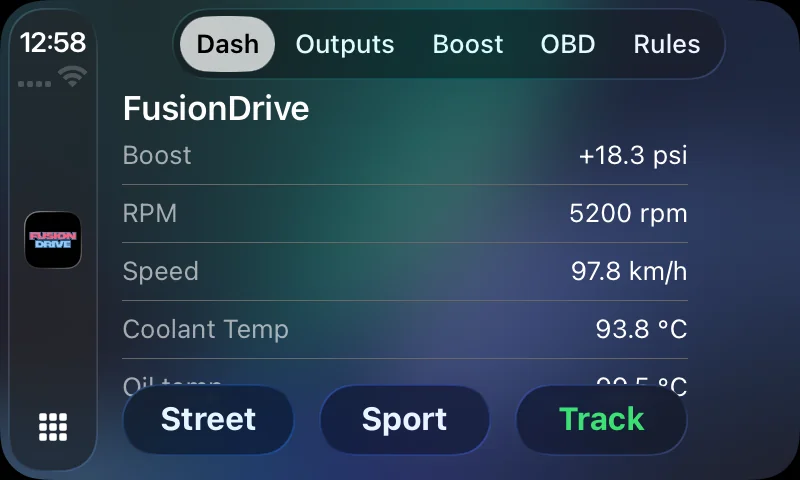
Full details: CarPlay guide.
What happens when the phone is not connected
The FusionDrive is a standalone controller. When you walk away with your phone:
- Outputs keep the state they were in. Outputs set to Auto continue to be driven by boost control, water/meth, nitrous or automations.
- Automations keep evaluating and firing on the device.
- Boost control, water/meth and nitrous keep running with their safety checks.
- Nothing is logged to the phone (data logging is a phone feature), though the device keeps its own drive statistics for Intelligence.
- When the car is switched off, the device waits about a minute for CAN traffic or ignition to return, then forces every output off and goes to sleep. It wakes the moment the bus is active or ignition returns.
Bluetooth activity does not keep the device awake — only the car does. This is deliberate so the device never drains a battery.
Manual contents
Dashboard & Sensors
Every dashboard card, live indicators, sensor slots IN1–IN6, presets, calibration, level switches.
Read →Controls & Outputs
OUT 1–4 and AUX 1–2, on/off vs PWM, duty presets, frequency, min/max duty, output presets, safety.
Read →Boost Control
Up to eight saved profiles, target, ceiling, control modes, response, learning, sensor source, status states.
Read →Water/meth & Nitrous
Trigger pressures, duty mapping, priming, arming, RPM/throttle windows, lockouts and safety.
Read →CAN & OBD
Operation modes, parameter discovery, fault codes, custom CAN transmit, decode rules and DBC import.
Read →Automations
Conditions, operators, AND/OR, actions, reverse-when-false, recipes, and how rules run without the phone.
Read →Data Logging
Channels, rates, auto-start, markers, the log list, log detail, export, storage and cloud upload.
Read →Intelligence
Watch, Advise and Assist tiers, health categories, insights, guard rails, car profile, drive sessions, Cloud Intelligence.
Read →FusionDrive Cloud
Account, claiming devices, licences, auto-sync, pending web changes, web viewer, sharing, privacy.
Read →Settings & Firmware
Feature settings overview, device and firmware actions, display/app preferences, account and support.
Read →CarPlay
Dash, Outputs, Boost, OBD and Rules tabs — what you can change while driving.
Read →Troubleshooting
Connection, sensor, CAN and output problems and how to fix them.
Read →Create and fine-tune a sensor together
When adding a sensor, select a starting preset and edit its calibration before Create. Analog setup includes low/high voltage and engineering readings, voltage scale and display range. Digital/level setup includes threshold, hysteresis and reverse logic. Invalid ranges must be corrected before saving. Display-unit preferences convert what you see; they do not silently change the source-unit calibration saved on FusionDrive.