
Dashboard and Sensors tabs
The Dashboard is your live view of everything the FusionDrive is doing. The Sensors tab is where you tell it what is wired to its six analog inputs. This page walks through every card, every value, and every field in the sensor setup.
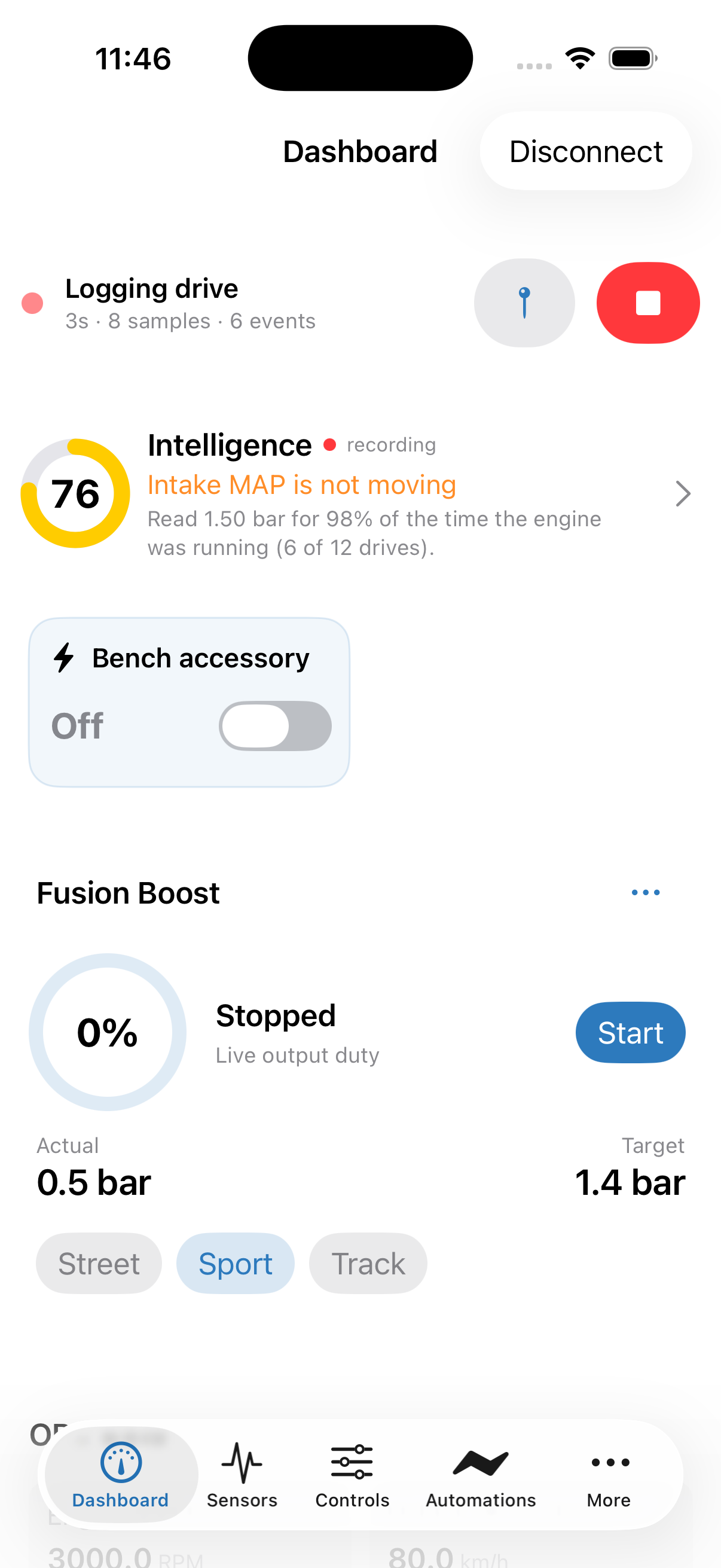
Dashboard tab
The Dashboard is a scrolling stack of cards. Each card shows live values and, where it makes sense, a one-tap control. Tapping a card's title opens the full screen for that feature. Values refresh many times a second while connected; if the device disconnects, the last values stay on screen greyed out until the link returns.
Banners at the top
| Banner | When it appears | What to do |
|---|---|---|
| Active alerts | One or more alerts are currently firing (overboost, fault, disconnect, custom threshold…). Shows the alert title and time. | Tap to see details or dismiss. Configure which alerts exist in Alerts & Notifications. |
| Pending web changes | Someone edited this device's configuration in the FusionDrive web viewer and the change has not been applied yet. | Tap to review the change, then Apply or Reject. See Pending changes. |
| Recording card | Always present. Shows whether a data log is recording, its duration and sample count, with a Start/Stop button and a Marker button. | Tap Start to begin a manual log without leaving the Dashboard. See Data Logging. |
| Intelligence card | Always present. Shows the overall health score, the current tier, and the most important open insight. | Tap to open Intelligence. See Intelligence. |
Every dashboard card
Electronic Boost Controller (external controller)
Shown only when Show on Dashboard is on in Boost Control → Third-party EBC → Controller setup. This card is for an external aftermarket boost controller that FusionDrive steps through groups using documented ground-trigger pulses on AUX1 or AUX1+AUX2 — not for the built-in boost controller.
- Title — the controller model you selected in Settings, or your custom name. Reads Not Configured with a Configure button until you pick one.
- Value — the current group, shown as Group 1… or the custom group name you gave it (for example Street, Track).
- Previous / Next buttons — step the external controller down or up one group. Each press sends one pulse (2-wire controllers) or cycles through (1-wire). The device wraps around at the last group.
Setup for this card is described under Boost Controller Configuration.
Output quick cards
One small card for every output with Show on Dashboard turned on, two per row.
- Title — the output name (defaults: Output 1…Output 6; hardware labels OUT 1–4, AUX 1–2) and its icon.
- Value — ON (green) when the output is enabled and driving any duty above 0 %; OFF when enabled at 0 %; Off in grey when the output is disabled in settings.
- Tap — toggles the output between 0 % and 100 % duty. Disabled outputs ignore taps.
Tapping an output card switches a real load — a pump, fan or solenoid — immediately. If an output is assigned to boost control, water/meth or nitrous, leave it in Auto mode and control it from that feature instead.
Boost Control card
The built-in electronic boost controller. Always shown once the device has reported boost data.
| Field | Meaning |
|---|---|
| Boost profile | The active saved profile name. New supported firmware starts with three and allows up to eight; older firmware can remain limited to three. |
| Actual | Boost pressure right now, in your pressure unit, from the selected boost sensor source. |
| Target | The boost the controller is aiming for in the active profile. |
| Duty | How hard the boost solenoid is being driven, 0–100 %. |
| Status dot + state | Green when the controller is actively controlling; grey otherwise. The state text (Idle, Spooling, On Boost, Overboost Recovery, Cooldown, Disabled) is explained in Boost status states. |
| Sensor source | Which sensor is providing "Actual": the onboard boost sensor, an analog input, or the car's own MAP reading over OBD. |
| Open Loop / Closed Loop | The control mode in use. |
Tap the card to open Boost Control.
WMI Control card
Water/methanol injection status. Always shown once the device has reported water/meth data.
- State badge — Disabled, Armed, Injecting, Priming or Fault. Blue when active.
- Duty — current pump duty, 0–100 %, with a progress bar.
- Activation — the start and full-injection pressures (default 8 – 16 PSI).
- Priming… — shown with a spinner while a prime/test is running.
Tap to open WMI Control.
Output slider cards
Outputs that are enabled, shown on the dashboard and set to Manual mode get a second, larger card with the live duty percentage, quick buttons and a duty slider. This lets you run a fan or pump at a partial speed straight from the Dashboard. Controls are identical to the Controls tab — see Output quick controls.
Key engine values
When the device is receiving data from the car, a grid of engine parameters appears. Which parameters are shown is up to you:
- Common default selections, when supported, include: Engine RPM, Coolant Temperature, Intake Manifold Pressure, Vehicle Speed, Control Module Voltage and Throttle Position.
- Any other parameter you have pinned in OBD Settings → Discovered OBD-II PIDs is added.
- Values are converted to your unit preferences: temperatures to °F if selected, pressures to psi/bar, speed to mph.
- Manifold pressure is shown as boost relative to atmosphere — the device subtracts the barometric reading (or the Baro Fallback value from Settings if the car does not report one), so idle reads as vacuum and positive numbers mean boost.
Data comes in as fast as the car provides it; most parameters update several times a second in Active mode.
Active sensors
Every analog sensor with Show on Dashboard enabled appears here with its name, live value and unit. Two special cases:
- Level / switch inputs show ON or OFF (or the equivalent for a fluid level switch) rather than a number.
- No signal replaces the value in red when the input voltage is outside the range that indicates a connected sensor. Check the wiring and the sensor's power feed.
Sensors tab
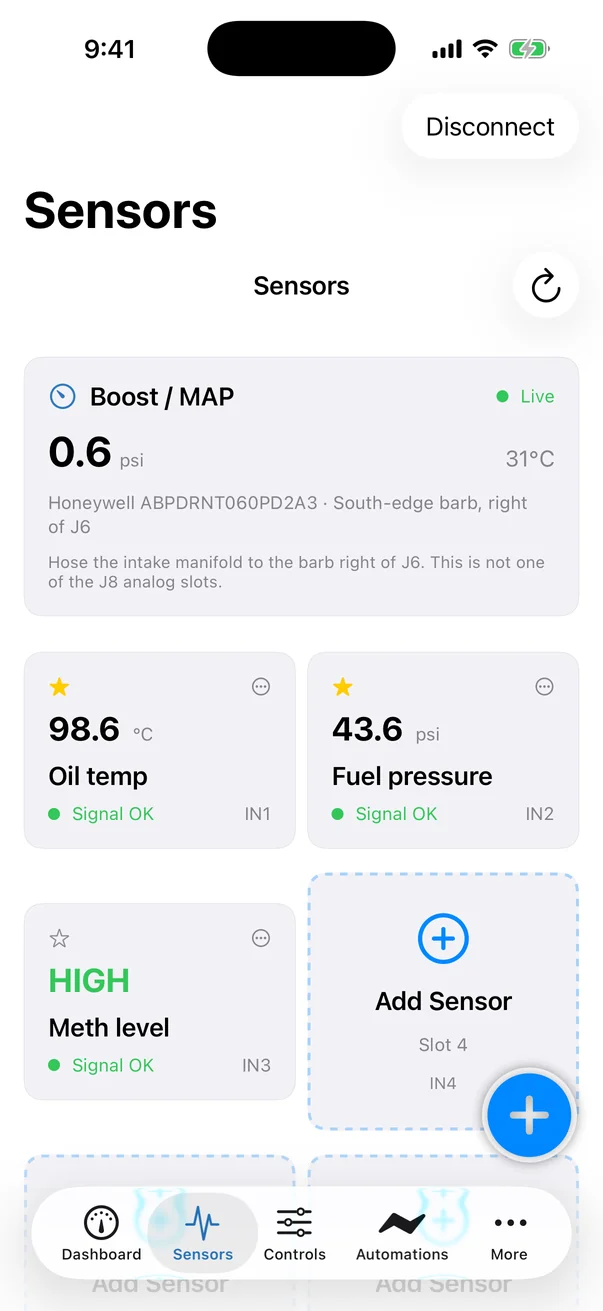
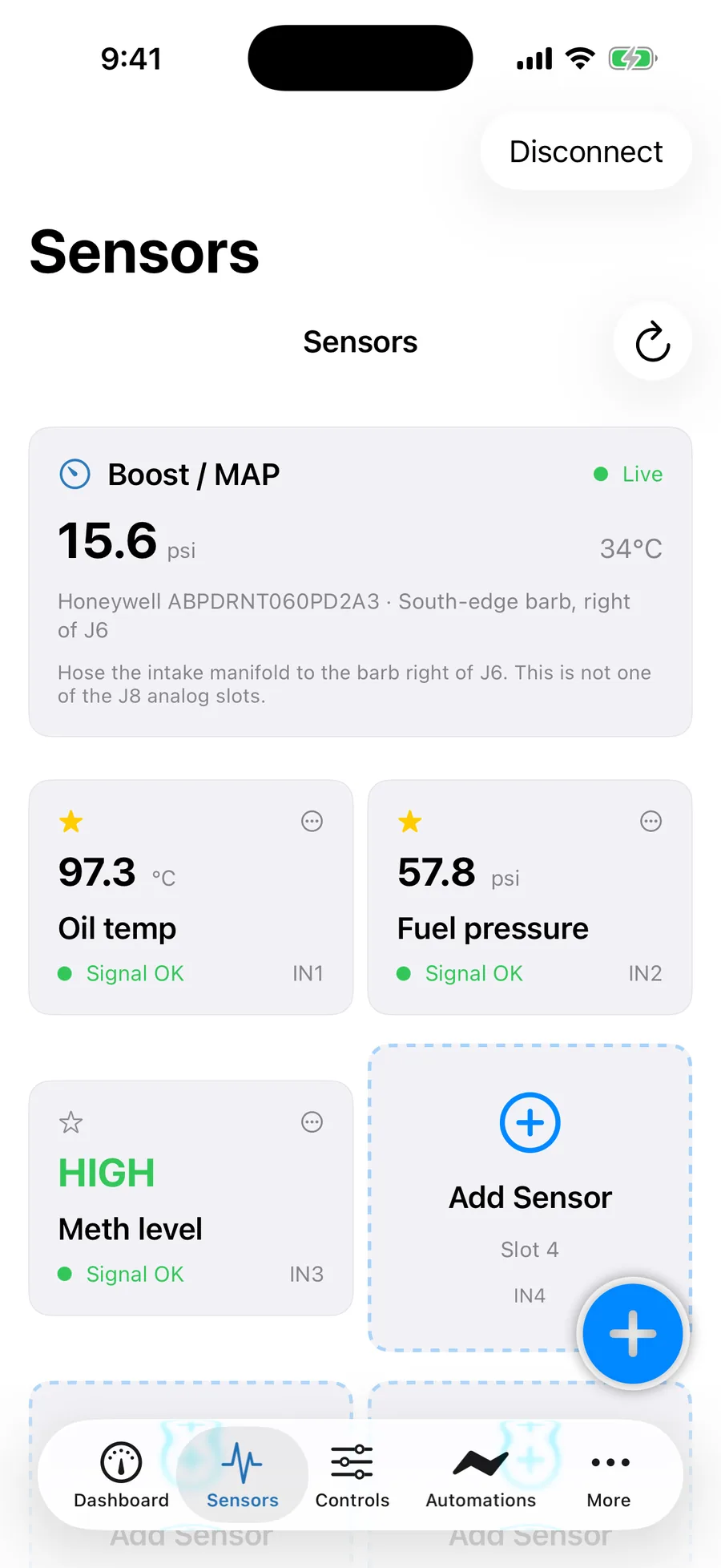
The Sensors tab manages the six analog inputs. Each input accepts a 0–5 V signal and appears as a "slot". A slot is either empty (an Add Sensor tile) or holds a configured sensor card. When not connected, the tab shows Not Connected — Connect to your device to manage sensors.
Onboard boost sensor
The first card is the sensor built into the FusionDrive itself. It is not one of the six slots and cannot be deleted or re-calibrated.
| Item | Detail |
|---|---|
| Name | Boost / MAP |
| Range | Vacuum to +60 psi gauge; pressure below atmosphere is negative |
| Connection | A vacuum hose from the intake manifold to the boost port on the edge of the device (see Installation). No wiring needed. |
| Live value | Pressure in your unit, plus a status dot. Reads about 0 with the engine off. |
| Used by | Boost Control (sensor source Onboard), water/meth triggering, Intelligence, data logging. |
Slots IN1–IN6
All six inputs are identical: 0–5 V analog, with sensor power and ground available on the input harness. The card for each slot shows:
| Slot | Input label | Typical use |
|---|---|---|
| 1 | IN1 | Any 0–5 V sensor: oil pressure, fuel pressure, external boost/MAP, ethanol content, exhaust gas temperature (through a 0–5 V amplifier), a tank level switch, a nitrous arm switch, or a generic voltage. |
| 2 | IN2 | |
| 3 | IN3 | |
| 4 | IN4 | |
| 5 | IN5 | |
| 6 | IN6 |
Each configured sensor card shows the sensor name, slot label, live value with unit (or ON/OFF for level inputs), a green Signal OK or red No Signal indicator, and Edit/Delete buttons. Wiring pin-outs for the input connector are in Wiring.
Add a sensor
- Tap an empty slot
Choose the slot the sensor is physically wired to. The header of the form confirms the input label, connector pin and 0–5 V.
- Pick a Sensor type
The preset fills in the unit and calibration for common sensors (table below). The creation form includes the preset voltage/reading endpoints and Fine tuning & display. Adjust them to the sender specification before Create.
- Name it
Sensor Name is required — Create stays greyed out until you type one. Use the name you want to see on the Dashboard, in automations and in logs (for example "Oil Pressure").
- Choose Type
Analog for anything that reports a value; Digital (On/Off) for switches and float sensors. The preset sets this for you.
- Choose Unit (analog only)
Options: psi, bar, °C, °F, %, V, A, kPa, MPa. Pressure and temperature units are converted for display according to your Unit Preferences.
- Show on Dashboard
Choose whether to pin it. Sensors used only for rules or logging do not need a Dashboard card.
- Tap Create
The device stores the sensor and starts reading it immediately. If the device rejects it (for example the slot is already in use), an error message explains why.
Sensor presets
Every preset is an editable starting point. Adjust calibration and fine tuning before Create, or reopen Edit later.
| Preset | Unit | Type | Voltage range | Value range | Notes |
|---|---|---|---|---|---|
| External Boost / MAP | psi | Analog | 0.5 – 4.5 V | 0 – 30 psi | For a separate boost sensor mounted near the throttle body. Selectable as a boost control sensor source. |
| Oil Pressure | psi | Analog | 0.5 – 4.5 V | 0 – 150 psi | Typical 3-wire 150 psi sender. |
| Fuel Pressure | psi | Analog | 0.5 – 4.5 V | 0 – 100 psi | Typical 3-wire 100 psi sender. |
| Ethanol Content | % | Analog | 0.5 – 4.5 V | 0 – 100 % | For flex-fuel sensors that output 0–5 V through a converter. |
| EGT | °C | Analog | 0.0 – 5.0 V | 0 – 1100 °C | Exhaust gas temperature via a thermocouple amplifier with 0–5 V output. |
| 0–5 V Generic | V | Analog | 0.0 – 5.0 V | 0 – 5 V | Reads the raw voltage. Use with custom calibration for anything not listed. |
| Level / Switch | — | Digital (On/Off) | 0 – 5 V | 0 – 1 | Anything that is either on or off: water/meth tank float, nitrous arm switch, clutch switch. Configure the threshold and debounce for the switch circuit. |
If you do not pick a preset when creating an analog sensor manually, the default calibration is 0.5 V → 0 and 4.5 V → 100 in the chosen unit; for a level sensor it is 0 V → 0 and 5 V → 1.
Custom calibration
Set calibration, units, display range and fine tuning during Add Sensor or in its later Edit screen. Choose the supported calibration form for the sensor, enter its transfer values, and compare the live result with a known reference. Review signal validity and, for level inputs, threshold and hysteresis before using it as a controller or rule source.
| Setting | What it does | Range / options | Default |
|---|---|---|---|
| Sensor Name | Display name used everywhere in the app, CarPlay and logs. | Free text; cannot be empty | From preset |
| Unit | Unit label and the basis for automatic conversion (psi↔bar↔kPa, °C↔°F). | psi, bar, °C, °F, %, V, A, kPa, MPa | From preset |
| Show on Dashboard | Whether the sensor appears in the Dashboard's Active sensors section and on CarPlay. | On / Off | On |
| Voltage Range — Min V | The sensor output voltage at the low calibration point. | 0.0 – 5.0 V, one decimal | 0.5 V (preset dependent) |
| Voltage Range — Max V | The sensor output voltage at the high calibration point. | 0.0 – 5.0 V, one decimal | 4.5 V (preset dependent) |
| Value Range — Min | The physical value that corresponds to Min V. | Any number, one decimal, in the sensor unit | 0 |
| Value Range — Max | The physical value that corresponds to Max V. | Any number, one decimal | Preset full scale (e.g. 150 psi) |
| Display Range — Min / Max | The span of the gauge shown in the app. Does not affect the measured value — only how bars and gauges are scaled. | Any numbers | Same as value range |
Below the fields, Current Value shows the live reading with your new calibration applied, and Signal Status shows OK / No Signal. Use these to check a calibration before saving: with the engine off, an oil pressure sender should read close to 0.
Read the unit shown beside each calibration field: engineering readings follow your display preference and are converted back into the sensor's source unit before saving. Voltage fields stay in volts. Changing the display preference does not change the physical calibration.
Sensor datasheets almost always state the calibration as "0.5 V = 0 psi, 4.5 V = 150 psi" or similar. Enter those four numbers directly. If the sheet gives a transfer function instead (for example "12.5 mV per psi with 0.5 V offset"), compute the value at 4.5 V: (4.5 − 0.5) / 0.0125 = 320 psi.
Level / switch inputs
A Digital (On/Off) sensor converts the measured voltage into a state using its configured threshold, hysteresis/debounce and inversion. Verify both switch positions and the open-circuit behavior. Use a properly biased 0–5 V circuit for:
- Water/meth tank level switch — wire a float switch so it reads OFF when empty, then add an automation that lights a warning output and a custom alert that notifies your phone. See Level switch interlock.
- Nitrous arm switch — select the slot as the Arm input in Nitrous settings. The system will not arm unless this input is ON.
- Any dash switch — a condition in automations ("Dash Switch = HIGH → Output 3 ON") turns any output or profile into a physical button.
Use the actual threshold and debounce settings shown by the app. A generic 0 V value does not prove a disconnected sensor or an empty tank; configure the circuit and meaning of each state.
Edit and delete
- Edit opens the same form as Add with the Calibration section expanded. Changes are sent when you tap Save.
- Delete asks for confirmation: "Are you sure you want to delete 'name'? This will completely remove the sensor configuration." The slot returns to an empty Add Sensor tile. Automations or alerts that referred to the sensor will no longer match anything — review them afterwards.
- The app briefly blocks rapid repeated changes so the device is never asked to save faster than it can. If you see "please wait", pause a second and try again.
Signal status
| Indicator | Meaning | Check |
|---|---|---|
| Signal OK green | The input voltage is within the range expected of a connected sensor. | — |
| No Signal red | The configured validity/freshness check failed. This is a status to investigate, not a diagnosis of the wiring fault. | Sensor power (5 V) and ground on the harness; signal wire continuity; that the sensor is on the slot you configured. |
| Value pinned at the maximum | Signal wire shorted to sensor power, or Max V set lower than the sensor's real output. | Compare the raw voltage using the 0–5 V Generic preset. |
| Value negative or below minimum | Min V is set higher than the sensor's real idle voltage. | Read the datasheet offset (usually 0.5 V) and enter it as Min V. |
Your dashboard, your controls
Health / Intelligence and logging are shown by default; hide them in their respective settings if you prefer. A new device offers six default vehicle PID cards and a boost setup entry. Missing vehicle data is shown as unavailable, never as a fabricated reading. Add or remove dashboard items as your setup grows. Configured boost appears as one controller card; pinned outputs provide glance controls, while Controls opens deeper live actions.
Related
- Wiring — input connector pin-out, sensor power and ground.
- Boost Control → Sensor source — using an external boost sensor for control.
- Automations — using sensor values and switches as conditions.
- Intelligence → Sensors health — automatic detection of noisy or stuck sensors.
- Troubleshooting — sensor reads wrong or no signal.