
OBD & CAN — vehicle and accessory data
Use supported vehicle data from CAN1 and configure a separate CAN2 accessory bus. Discover supported standard PIDs, choose what to monitor, and turn correctly defined CAN signals into useful measurements for dashboards, logging and compatible controller inputs. Open More → OBD Settings; or Settings → OBD & CAN.
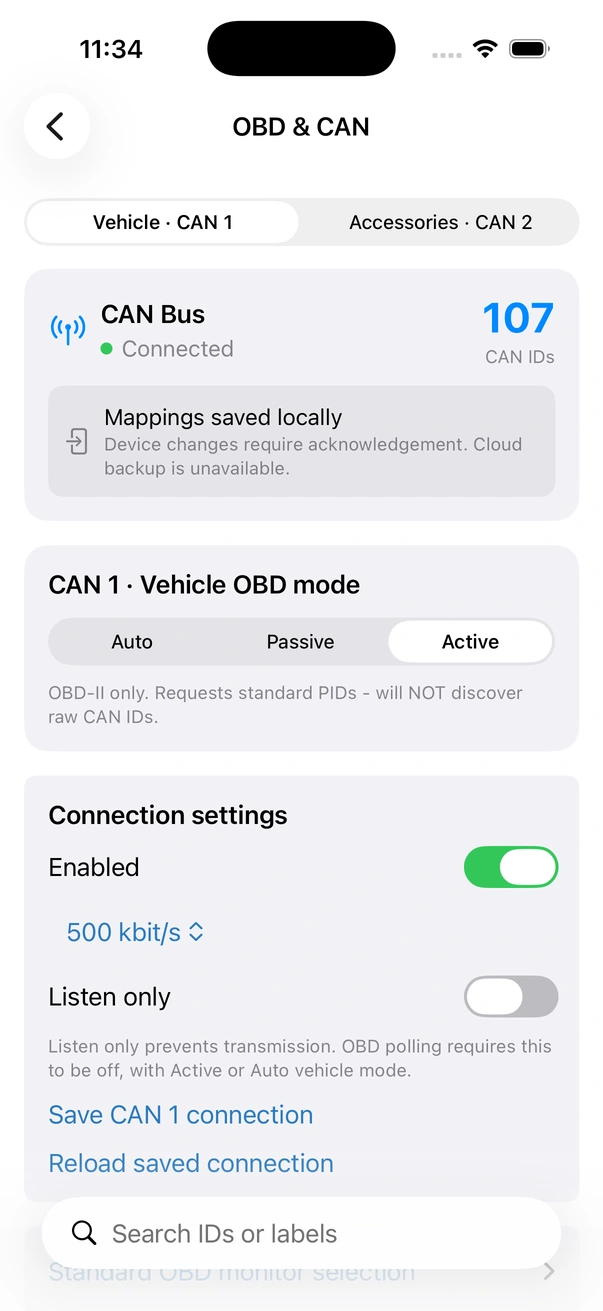
What the OBD connection gives you
CAN1 uses the OBD connector for compatible CAN-based vehicles. Standard PID discovery identifies what the ECU reports as supported and which responses have actually been received. It does not reveal every manufacturer-specific signal, and an OBD socket alone does not establish compatibility with older non-CAN diagnostic protocols.
CAN2 is a separate accessory connection. A frame needs the correct bus identity and definition before its bytes become pressure, temperature, flow or another measurement. Once a compatible signal is decoded and fresh, the supported dashboard, logging, automation and controller-source tools can use it.
These features read and configure FusionDrive's interfaces. They do not reflash the engine ECU or automatically interpret unknown proprietary traffic.
Status header
The header summarizes bus/discovery state. Choose Vehicle · CAN1 or Accessories · CAN2 first. Connection settings and signals follow the selected bus. Only Vehicle shows OBD operation mode, the standard PID catalogue and diagnostic codes. A configured/ready bus is not proof of live traffic, and a received ID is not yet a decoded sensor.
Search filters visible IDs/labels. Refresh to obtain the current device registry and configuration; the ESP remains the authority for saved mappings.
Operation Mode
- Auto: uses observed traffic to choose the vehicle listening/polling behaviour. If required standard data is not arriving, inspect the bus configuration and try the appropriate explicit mode.
- Passive: observes available traffic without the vehicle OBD request loop. It cannot request missing ECU values or perform a requested diagnostic scan.
- Active: requests enabled standard OBD values on CAN1. Raw-frame visibility is a separate view; it is not a switch that makes all other traffic disappear.
Per-bus Allow transmitting on this bus is the hard transmit permission. Listen-only blocks transmissions on that physical bus, including configured custom transmit. CAN1 OBD polling requires both permission to transmit and an appropriate Active/Auto mode.
Bus detection
Turn on the vehicle as required for its diagnostic session, verify the connection and match the configured bit rate. Traffic detection is not automatic decoding of arbitrary CAN signals or proof that every ECU supports standard polling.
If a bus is silent, check wiring, ground/reference, termination and its enabled/speed settings before adding transmit traffic. CAN2 has its own physical settings; enabling it is an explicit saved action.
Discovered OBD-II PIDs
Open Standard OBD monitor selection, then Discover supported PIDs. Allow responses to arrive and refresh. The catalogue distinguishes response received, ECU reports supported, not in ECU support bitmap and support not known.
Select the standard scalar PIDs you want polled and made available. A supported bitmap is not the same as a fresh reading. A missing response remains unavailable rather than zero. The current catalogue provides explicit enable selection; the older description of six permanently enabled PIDs does not describe this control.
The discovered/observed lists provide friendly labels, values and rates where available. Dashboard pins and logging selection are separate choices: pinning a gauge does not recover a channel that was never received or recorded. Multi-value/proprietary data needs the appropriate decoder.
How often data updates
Standard OBD requests share CAN1 polling time. Selecting more channels can reduce how frequently each refreshes; ECU response behaviour and bus load also matter. Passive signal rates follow the transmitting equipment. Watch reported rates and source ages rather than assuming a fixed 10–50 Hz vehicle update rate.
Controller freshness limits depend on the saved function/source configuration. Explicit boost feedback and measurement-dependent WMI/nitrous protections do not become valid just because a PID was once discovered. Select an appropriate fresh source and check behaviour when it stops updating.
The current implementation does not offer a generic CAN2 request/response polling editor. CAN2 equipment that requires proprietary requests needs a verified supported interface; selecting a bus speed or adding a decode rule alone does not generate those requests.
Diagnostic Trouble Codes
Scan for Codes requests supported stored diagnostic codes from the vehicle. It requires CAN1 transmit permission and appropriate Active/Auto OBD behaviour. Clear All Codes sends a diagnostic clear request after confirmation; the ECU determines its response and may reset associated readiness/freeze-frame information.
Record the codes and diagnostic context first. Clearing a code does not repair its cause, and this standard scan is not a promise of access to every manufacturer module.
Custom CAN Transmit (Sensor Injection)
Custom CAN Transmit broadcasts a configured analog sensor value in a supported format. Select CAN1 or CAN2, source input, label, scaling, interval and the intended frame layout. This is sensor transmission—not a generic accessory polling transaction or an ECU-tuning function.
- Identify the recipient's expected format
Use its specification. The app's sensor/formula presets are encoding conveniences, not proof that every ECU, dash or tuning package accepts the value.
- Select the bus and source
Choose the configured analog input and destination bus. Confirm the physical bus is enabled and deliberate transmit permission is set.
- Review encoding and rate
The editor offers scaling and supported OBD-style/raw formats. Check ID, byte/bit layout, units and update interval against the recipient.
- Save and verify
Wait for acknowledgement and confirm the receiving equipment interprets the intended measurement. Saved transmit configuration can run without the phone.
ID conflicts matter. 0x7E8 can conflict with ECU replies; IDs 0x500–0x5FF are not universally safe. Use an agreed ID and the required isolation/interface for that network. Disable unexpected transmissions before investigating. Do not spoof an existing ECU sensor.
Vehicle / Accessory signals & decoders
The raw registry retains exact bus/frame identity, including standard versus extended IDs. The top Vehicle/Accessories selection chooses the bus; filter its module list and inspect the reported bytes/rate. Names help organize the list; they do not decode a signal.
Open a frame to manage one or more signal definitions. Enable the required frame/signal and select the decoded channels for the dashboard, controller inputs or recording. The device supports up to 70 decode rules shared across its configured signals.
Latest bytes in the registry are snapshots. For bounded individual-frame evidence, configure the optional receive journal in Logging settings; it is not a lossless full-bus analyser.
Decode rules
A rule combines the exact bus, frame ID/ID type and signal identity with a layout and conversion. Give the accessory and signal useful names; signal labels must be unique within the supported registry.
- Byte layout: offset 0–7 and length 1–8 bytes, fitting the received classical-CAN frame.
- Packed layout: start bit 0–63 and length 1–64 bits. Intel counts upward from the least-significant bit; Motorola uses its most-significant-bit layout across byte boundaries.
- Numeric conversion: signed/unsigned integer, multiplier, offset and units. Value = raw × multiplier + offset.
- Multiple signals: add separate definitions for several signals in one frame; one ID is not limited to one value.
Use a matching manufacturer specification or supported DBC. Validate the decoded value against a known measurement before using it as controller feedback or a protection input. Saves are acknowledged by the device; failed writes do not become successful just because a local draft exists.
Import DBC
- Choose the destination bus and file
The importer accepts a text DBC up to 2 MiB for CAN1 or CAN2.
- Review supported and skipped definitions
Current support is classical-CAN message lengths 1–8, standard/extended IDs and 1–64-bit integer signals, including packed Intel/Motorola layouts and multiple signals per frame. Multiplexed and floating-point signals are not supported.
- Select what you need
The device has 70 rule slots. Duplicate selected names/layouts are checked before writes; unsupported definitions are reported rather than silently advertised as imported.
- Import and read the result
Rules are saved sequentially after acknowledgement. If a later rule is rejected, the importer reports the partial result; earlier acknowledged rules remain saved.
A matching bus/frame/signal layout is replaced after acknowledgement; other signals are retained. The imported rules, not the original DBC file, are the operating definitions saved on the ESP. A successful parse does not prove that the file matches the connected accessory or firmware version.
The second CAN bus
Connect CAN2 H/L on the dedicated accessory wiring described in Wiring. Choose Accessories · CAN2, enable the bus in its connection settings, choose 250/500/1000 kbit/s to match the network, and start with transmitting off. Use Save CAN 2 connection and wait for acknowledgement. The CAN1 connection is not rewritten by this save.
- For an accessory that broadcasts
Listen for its frames. Open Accessory signals & decoders, name the accessory and add supported signal definitions or import its matching DBC.
- For an accessory that accepts FusionDrive sensor broadcasts
Configure the supported Custom CAN Transmit format on CAN2, then explicitly permit transmission and verify the recipient's interpretation.
- For an accessory that needs polling or a proprietary handshake
Confirm an implemented compatible interface before relying on it. There is no generic request/response polling wizard or universal accessory preset library in this release.
CAN1 standard OBD polling remains on CAN1. CAN2's settings and decode rules are saved independently on the device; a CAN1 frame with the same numeric ID is not the same signal. The board contains CAN-FD-capable controllers, but current firmware support is classical CAN; complete CAN FD operation is not established by this guide.
Clearing the CAN registry
Under Maintenance, Clear registry for both buses clears discovered registry entries on CAN1 and CAN2 after confirmation and allows discovery to rebuild the list. Review what you need to retain before using it when changing vehicles. Decode rules and custom transmit settings are separate stored configurations; this is not a factory reset.
Clearing a list does not disable every previously configured control function. Review controllers, input bindings and transmit definitions separately when moving the hardware to a different car.
Backing up mappings
Names, selected monitoring and supported CAN configuration are saved on the ESP and operate without an account. Optional Cloud synchronization can retain a configuration snapshot for review.
A Cloud snapshot is not an automatic restore over the device. Review pending web edits, approve them through the connected phone, and wait for ESP validation/acknowledgement/readback. A local cache or uploaded draft does not override current device settings by itself. See FusionDrive Cloud.
Troubleshooting pointers
- No traffic: check vehicle/accessory power, compatible protocol, physical wiring, termination, enabled state and matching bit rate.
- Traffic but no usable values: confirm the right bus and decode definition. For standard CAN1 OBD data, check operation mode and transmit permission.
- Missing expected PID: inspect support/observed status; the ECU or diagnostic session may not provide it. Proprietary data needs a correct supported definition.
- Wrong units or implausible values: check source calibration, gauge/absolute pressure reference, signedness, layout, multiplier and offset.
- Stale protection input: check actual rate, channel selection and controller timeout; a former valid value is not current evidence.
- Unexpected behaviour after transmit: disable the definition and inspect ID/format conflicts with the installer. Do not assume another numeric ID is safe without the network specification.
- Partial import/save: read the device acknowledgement and reload its stored configuration before retrying.
See Troubleshooting for further checks.
Related
- Wiring — physical buses and sensor interfaces.
- Dashboard — available engine values.
- Automations — compatible signal conditions.
- Boost sources — explicit feedback and freshness.
- Water/meth & Nitrous — measurement-dependent protection.
- Logging — decoded values and bounded raw capture.