
CarPlay
FusionDrive appears on your car's CarPlay screen as a glanceable dashboard with a few large, deliberate controls: switch boost profiles or external controller groups, nudge the boost target, toggle outputs and water/meth, and arm or disarm rules. Everything else — configuration, calibration, logs, Intelligence detail — stays in the phone app, where it belongs.
Overview
CarPlay runs the same app; the phone keeps the Bluetooth link to the FusionDrive and mirrors a car-friendly view to the head unit. Nothing is configured in CarPlay — it shows what you set up on the phone. Five tabs are always present: Dash, Outputs, Boost, OBD and Rules. Head units that allow more than five tabs also get a Sensors tab.
CarPlay is designed to be glanceable. Live values update in place; if you do not see something you expect (a sensor, an output, an OBD parameter), it is because it is not switched on for the Dashboard in the phone app — see Sensors → Show on Dashboard, Outputs → Show on Dashboard and OBD → Show on dashboard.
Connecting in the car
If the phone is not yet connected to the FusionDrive when CarPlay starts, the connection screen appears:
| Row | What it does |
|---|---|
| Scan for Devices / Stop Scanning | Starts or stops the Bluetooth search. Scanning also starts automatically. "Make sure your FusionDrive is powered on" (ignition on). |
| Available Devices | Each FusionDrive found, by name — "Tap to connect". A "Connecting to …" screen shows until the tab bar appears. |
| Demo Mode | "Test without real device" — loads a simulated car so you can see the layout in a showroom or before installation. Nothing is sent to any device. |
Once the phone is connected — whether you connected in the car or earlier on the phone — the tab bar replaces this screen. If Bluetooth drops, CarPlay returns to the connection screen and reconnects when the device is back in range.
Dash tab
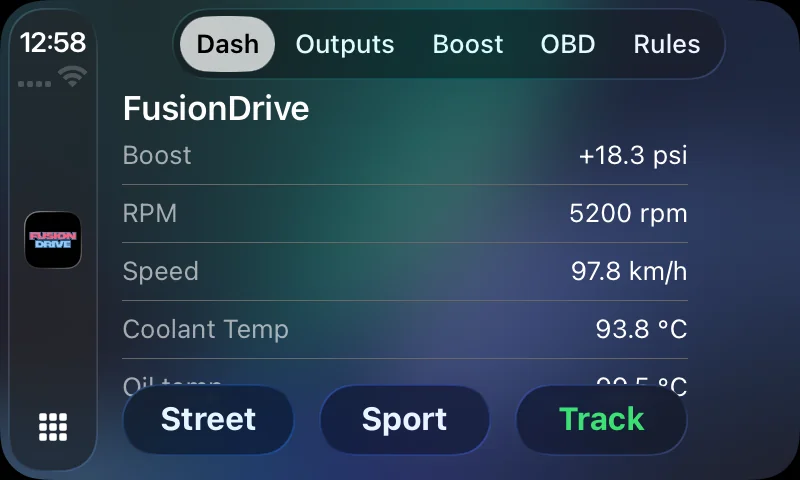
A two-column information view. Rows appear in a fixed priority order and the number shown depends on the head-unit screen size (4 rows on small displays, 8 on most, 10 on very wide ones):
| Row | Shown when | Value |
|---|---|---|
| Boost | Boost Control is enabled | Actual boost (signed psi) and, on larger screens, "· target x". "— psi" if the sensor is invalid. |
| Boost (MAP) | Boost Control is off but the onboard sensor is valid | Onboard manifold pressure as boost. |
| OBD parameters | Parameters marked Show on dashboard (or all enabled ones if none are marked) | Up to 6 (3 on small screens), in a sensible order: RPM, speed, coolant, intake air, oil temperature, throttle, load, voltage, timing, air flow, then the rest alphabetically. Units follow your Unit Preferences. |
| Wired sensors | Sensors with Show on Dashboard on | Value and unit, ON/OFF for level sensors, or "no signal". |
| Water/meth | WMI is enabled | "Injecting n%", "Priming", "FAULT" or "Armed". |
| Nitrous | Nitrous is enabled | "FAULT", "INJECTING", "Armed" or the current state. |
| Rules firing | At least one active automation is currently true | Names of the rules firing right now. |
| Intelligence | At least one drive has been analysed | "Health score · top insight" or "Health score · all clear". |
With nothing configured you will see "Connected · nothing on dashboard yet".
Buttons along the bottom (up to three):
- If Boost Control is enabled: one button per configured profile (three by default on new firmware), the active one highlighted. Tap to switch profile — the device changes target immediately. If you have more than three profiles you get ◀︎ / current / ▶︎ instead; tapping the centre opens a list with each profile's target.
- Otherwise, if an external boost controller is configured and Show on Dashboard is on: one button per group (up to three), or ◀︎ / current group / ▶︎ for more, with the centre opening a group list.
Outputs tab
A grid of large buttons, one per output that is enabled or marked Show on Dashboard (up to eight), plus a Water/meth button when WMI is set up.
| Button | Label | Tap |
|---|---|---|
| Output (solid disc glyph) | "Name · ON" or "· ON n%" | Turns the output OFF (0 %). |
| Output (outline power glyph) | "Name · OFF" | Turns the output fully ON (100 %). CarPlay does not set intermediate duty — use the phone for that. |
| Output (dashed ring) | "Name · Disabled" | Nothing — enable it in the phone app first. |
| Water/meth | "Water/meth · ON/OFF" | Enables or disables the water/methanol system (same as the Enable switch in WMI Control). |
Dedicated controller ownership is enforced by the app and device. Control boost, WMI or nitrous through its own feature; a manual CarPlay command cannot take over a controller-owned channel. Ordinary manual outputs can still be affected by saved rules. Configure and test these interactions while parked.
Boost tab
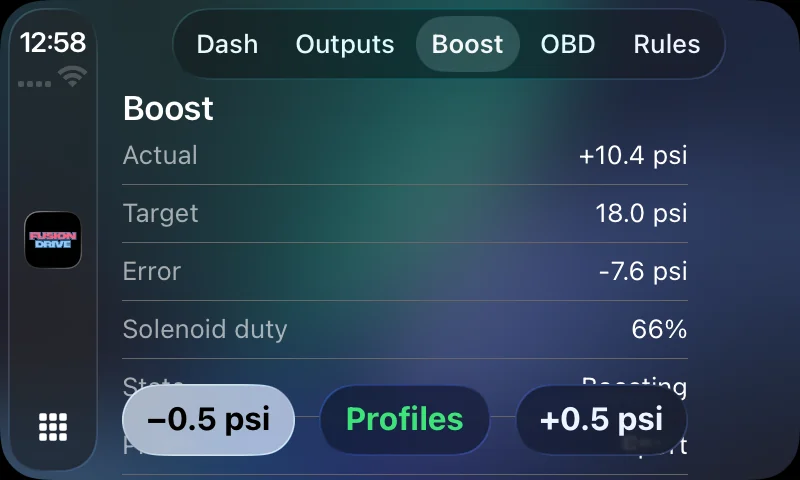
When Boost Control is enabled:
| Row | Meaning |
|---|---|
| Actual | Current boost (or "no sensor"). |
| Target | Target of the active profile. |
| Error | Actual minus target — negative while spooling, positive on overshoot. |
| Solenoid duty | How hard the controller is driving the solenoid (0–100 %). |
| State | Idle, Spooling, On boost, Overboost recovery, Cooldown or Disabled — see Boost status states. |
| Profile | Active profile name. |
| Mode | Manual, Open loop or Closed loop. |
| Sensor | Onboard or OBD source. |
| Ceiling | Your Max boost limit. |
| MAP temp | Onboard sensor temperature, when valid. |
Buttons: −0.5 psi (never below 0), Profiles (list with each profile's target; tap to switch), +0.5 psi (never above the ceiling). Target changes apply to the active profile immediately and are kept.
When an external boost controller is configured instead: rows show Controller, Group and MAP (onboard boost if valid); buttons are ◀︎ Previous, Groups (list) and Next ▶︎.
Neither configured: "Boost control — Not configured · Set up Boost → in the FusionDrive app".
OBD tab
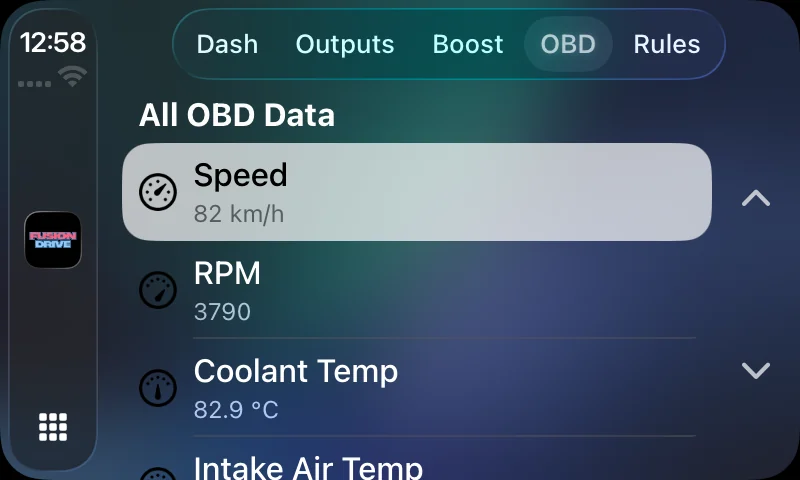
A scrolling list of OBD parameters with live values, in the units you chose. It shows the parameters marked Show on dashboard in OBD Settings; if none are marked, every enabled parameter is listed. Values are read-only. Empty states: "No OBD Data — Enable PIDs in the iOS app" or "Not Connected — Connect to see OBD data". Fault codes are not shown or cleared from CarPlay.
Rules tab
Lists every automation on the device with a one-line summary:
- Status: Armed (active, conditions currently false), FIRING NOW (active and true) or Disabled.
- Summary: "If condition AND/OR condition → action, action".
- Icon: filled bolt when firing, outlined bolt when armed, faint bolt when disabled.
Tap a rule to toggle it between active and disabled — the same as the switch on the phone's Automations tab. Disabling stops its active sequence and applies the engine’s safe exit to affected controls; do not expect an active output to stay on. The + button only reminds you that rules are created on the phone ("Configure Automations"). Rules keep running on the device whether or not the car screen is showing them.
Sensors tab (wide screens)
On head units that permit more than five tabs, a Sensors tab lists each configured wired sensor with its live value, unit and signal state ("Configure sensors in the iOS app" if none).
Intelligence in the car
The Dash row "Intelligence · Health n" and, where present, an Intelligence section open a read-only list: category scores with their headline, then active insights with their recommendation. "Nothing needs attention — Keep driving — FusionDrive is learning your car" when no issue has been detected in the available data. This is not proof that every system is healthy. Tapping an insight shows its summary. With an Advise or Assist licence and the device connected, insights whose action is conservative — softer boost response, wider overshoot tolerance, turning learning on or off, tightening an output's limits, switching an output or a rule off — offer Apply / Not now. Anything that would raise boost or the ceiling, or switch something on, is only ever applied from the phone.
Controls available on CarPlay
| From CarPlay | Phone app only |
|---|---|
| Switch boost profile; ±0.5 psi on the active target (within 0 … ceiling) | Enable/disable Boost Control, control mode, ceiling, response, advanced settings, profile names/targets |
| Step external boost controller groups | Controller model, wiring, pulse duration, group names |
| Toggle outputs fully ON/OFF | Duty percentages, modes, presets, frequency, naming, enabling |
| Enable/disable water/meth | Prime, Test, start/full boost, duty mapping, nitrous entirely |
| Arm/disable a rule | Create, edit, reorder, delete rules |
| View OBD values, sensors, health headline | Enable parameters, read/clear fault codes, sensor setup, logging, cloud, firmware, settings |
Safety
Make configuration and tuning changes while parked, then validate them under controlled conditions. CarPlay presents selected views and controls from the phone; it does not turn an untested setup into a validated one. If a fault or overboost state appears, stop safely and investigate before continuing.
- Everything CarPlay shows comes from the phone's Bluetooth link. If the phone disconnects, the device keeps running your configuration, automations and boost profile on its own — the screen simply loses live data until it reconnects.
- Configured device protections (overboost cut, sensor-loss behaviour, water/meth and nitrous gates) run locally and depend on valid configured sources.
- Some head units restrict which apps may run while moving; FusionDrive follows the car's rules.
Related
- Boost Control — profiles and states shown on the Boost tab.
- Controls & Outputs — what the Outputs grid toggles.
- Automations — the rules listed on the Rules tab.
- CAN & OBD — choosing which parameters appear.