
More tab, Settings, Firmware Update & Alerts
The More tab is the doorway to every feature that is not on the four main tabs, plus firmware updates and the Settings screen. This page covers the More menu, updating firmware, every row in Settings, the alert system, and how to send a support report.
The More tab
| Row | Opens | Manual page |
|---|---|---|
| Data Logging | Recorder, log list, logging settings. Badge: red dot while recording. | Data Logging |
| Intelligence | Health score, insights, car profile, drive sessions. Badge: unread insight count. | Intelligence |
| FusionDrive Cloud | Account, devices, sync, licences. Badge: pending web changes / uploads waiting. | FusionDrive Cloud |
| Outputs | Full configuration of OUT 1–4 and AUX 1–2. | Outputs |
| Boost Control | Built-in electronic boost control. | Boost Control |
| WMI Control | Water/methanol injection. | Water/meth & Nitrous |
| Nitrous | Nitrous control. | Nitrous |
| OBD Settings | CAN & OBD: parameters, fault codes, custom CAN. | CAN & OBD |
| Firmware Update | Check for and install device firmware (sheet). | below |
| Settings | Device and app settings. | below |
The header shows the connected device name and a Disconnect button on every tab.
Firmware Update
FusionDrive updates its own firmware by downloading it over a Wi-Fi network you give it (your garage or home Wi-Fi, or a phone hotspot). Your phone stays on Bluetooth the whole time and shows progress. "Enter garage WiFi once — the device remembers it until factory reset."
| Section | What it shows / does | Options | Default |
|---|---|---|---|
| Header | Connected device name, device model, current firmware version, serial. | — | — |
| Auto-check for updates | The app checks the update server about once an hour while open and sends a lock-screen notification when a newer version is available. | On / Off | On |
| Screen will stay awake during update | Informational — the phone will not lock while an update is running. | — | — |
| Garage WiFi (OTA only) | Shows the saved network (with Online / Saved state and signal strength once connected), a Scan button listing networks the device can see, or manual Network name and Password. Save WiFi on device stores it on the FusionDrive; Forget clears it. | — | None saved |
| Available Updates | Check asks the server for firmware newer than yours; shows Last checked. Either "Your firmware is up to date" or a list of versions with release notes. Badges: CRITICAL (recommended immediately) and BETA. | — | — |
| Start Firmware Update | Enabled when a version is selected and Wi-Fi is saved. Shows percent, bytes transferred and estimated time remaining. Cancel Update aborts. | — | — |
- Park with the ignition on
The device must stay powered throughout. Do not start the engine mid-update or switch the ignition off.
- Open More → Firmware Update
Confirm the current version at the top.
- Save a Wi-Fi network
Scan, pick your network, enter the password, Save WiFi on device. If your network does not appear in the scan, make sure its 2.4 GHz band is enabled, or enter the name manually. A phone hotspot placed near the car also works.
- Check, select, Start
Tap Check, tap the version you want, read the release notes, then Start Firmware Update. The device joins Wi-Fi, downloads, verifies and reboots itself. The app reconnects automatically; a Firmware update complete notification confirms it.
Outputs, boost control, water/meth and nitrous are not active while the device flashes and reboots (a minute or two). Do not drive on the update.
What the device sends: its serial, model and firmware version to the update server so it receives the right file. The Wi-Fi password never leaves the device.
If an update fails
A failed download or verification is abandoned and the device keeps running its current firmware — you will see a Firmware update failed alert. Wi-Fi is turned off again afterwards. Check:
- Network name and password (case-sensitive), and that the network has internet access.
- Signal strength at the car — the value shown next to the saved network; move the router or use a hotspot placed near the car.
- The ignition stayed on and the phone stayed within Bluetooth range.
- Then Check and Start Firmware Update again.
If the device restarts more than five times in a row it starts in a protective mode with automations paused until it has run stably, so you can reconnect and reinstall firmware or restore settings. If it will not reconnect at all, see Troubleshooting or send a report.
Settings overview
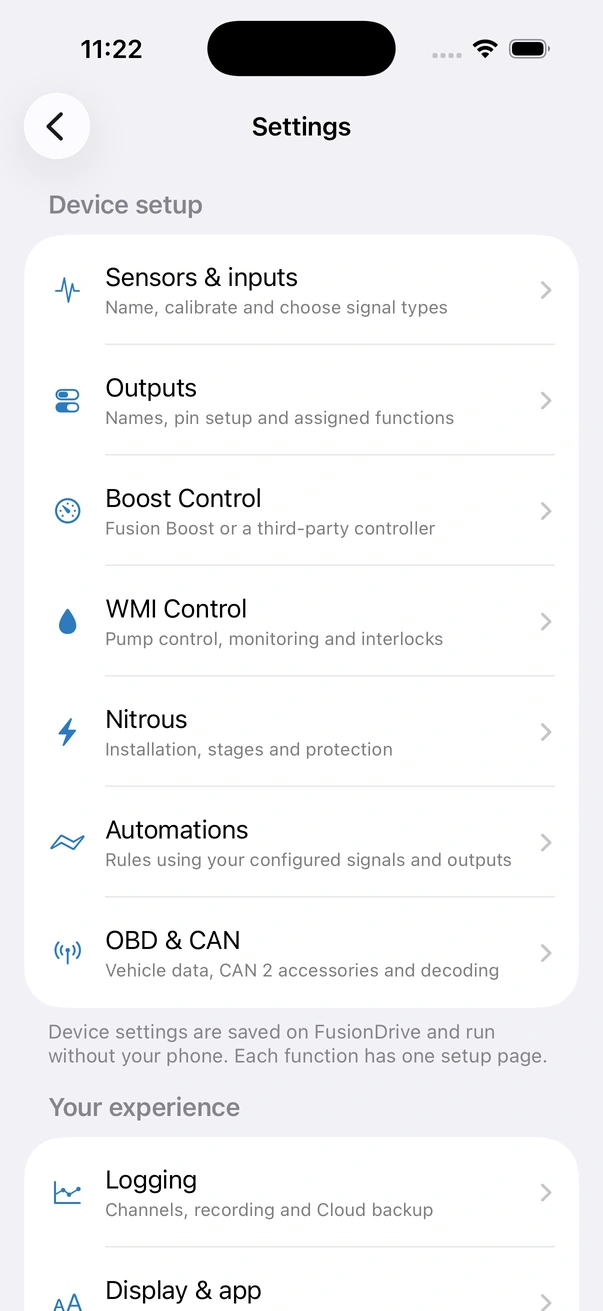
Choose Sensors & inputs, Outputs, Boost Control, WMI Control, Nitrous, Automations or OBD & CAN to configure that feature. Logging, Display & app, Account and Device & firmware hold the remaining preferences and device actions.
Save/Apply writes device settings to FD; wait for acknowledgement. If it fails, reload and review the saved state before enabling loads. Phone-only preferences, recording and account state stay on the phone.
Device & firmware
Open this destination from Settings for device information, naming, maintenance and firmware actions.
| Row | Meaning |
|---|---|
| Device Status | Connected / Disconnected. |
| Serial Number | The device's serial (also its Bluetooth identity). Quote it in support requests. |
| Device Model | Hardware model. |
| Device Firmware Version | Version and build currently running. |
| App Version | This app's version. |
| OTA Support | Yes / No — whether this device can update over Wi-Fi. |
| Device Name | Friendly name shown in the connection list and header. Type and press return (or tap away) to save. Cannot be empty. Separate from the cloud device name. |
External boost setup has moved
Open More → Boost Control → Third-party EBC → Controller setup. See Third-party EBC setup for model, wiring, groups, pulse duration and ignition restore.
Controller settings stay with their feature
EBC pulse and ignition settings are in Third-party EBC setup. WMI, nitrous and output settings are reached from their own feature screens. The Settings overview links to those screens without duplicating their editors.
Display & app: units
| Setting | What it does | Options | Default |
|---|---|---|---|
| Temperature | Display unit for every temperature, including OBD values. | °C / °F | °C |
| Pressure | Display unit for boost, manifold, oil and fuel pressures. Targets entered in the app are converted for you. | psi / bar | psi |
| Speed | Display unit for vehicle speed. | km/h / mph | km/h |
| Baro Fallback (Boost Control → Fusion Boost → Configure Fusion Boost → Connection → Pressure reference) | Atmospheric pressure the device assumes when your car does not report barometric pressure, used to turn absolute manifold pressure into boost. "Typical sea-level is ~101.3 kPa." Lower it at altitude (about −1.2 kPa per 100 m). | 60–120 kPa, step 0.5 | 101.3 kPa |
Unit preferences are saved on FusionDrive. In the iOS app they apply to sensor and OBD/CAN readings, controller targets and protection limits, charts, log cursors, alerts and CarPlay. Speed preference also controls distance labels. Offline log viewing remembers the last confirmed display preference.
Entering a preferred-unit value converts it back to the controller’s stored units before saving. Sensor calibration units, CAN decoder definitions and raw protocol values remain explicitly identified as source configuration. Changing display preferences never recalibrates a sensor, changes a controller target, or rewrites a recording. Absolute and gauge pressure references remain distinct.
CSV sample exports use the selected display units and matching column headers. Full JSON exports retain original source units for re-import. A temperature difference is marked Δ and converts as a difference; a disabled protection limit remains Disabled.
OBD & CAN
The Settings overview links to OBD & CAN. Choose Vehicle · CAN1 for vehicle polling and diagnostics or Accessories · CAN2 for the separate accessory connection and signal definitions.
Display & app preferences
| Setting | What it does | Options | Default |
|---|---|---|---|
| Keep Screen Awake | "Prevents the screen from auto-locking while the app is open." Handy for a phone mounted as a gauge display. | On / Off | Off |
| Alerts & Notifications | Opens the alert configuration described below; shows On/Off. | — | On |
Demo Mode & PIN
Explore without hardware: choose Demo mode on the welcome or connection screen. This uses simulated data and does not command a real FD device. Exit Demo before connecting to your hardware.
Revisit welcome: open Settings → Display & app and use Welcome & getting started. An account remains optional; local use does not require sign-in.
Connected configuration snapshot: the separate PIN-protected tool in Settings → Display & app captures core controller, output, sensor, automation, available bus and dashboard settings. It is not the device-free simulator. Commands in this connected mode affect real hardware. Reset reapplies the stored core configuration; CAN mappings/transmit rules and fields absent from the snapshot are not restored. Nitrous remains disarmed after restoration. Review the confirmation and readback before use.
Device & firmware: Support & Actions
| Action | What it does |
|---|---|
| Report an Issue | Opens the support report described below. |
| Reboot Device | Restarts the FusionDrive after confirmation. All settings are kept; outputs go off during the restart and the app reconnects in a few seconds. Try this before a factory reset if something looks stuck. |
| Disconnect Device | Drops the Bluetooth link (same as the header button). The device keeps running your configuration on its own. |
Factory Reset
"Factory reset wipes outputs, sensors, automations, CAN/OBD, EBC, Boost, WMI, and Nitrous. The boot serial number is kept so the unit still identifies as itself." "Use this before selling the unit. The app disconnects after reset."
Tap Factory Reset, then Reset Device in the confirmation. The screen shows "Factory Reset in Progress… Device will restart automatically". After it reboots, reconnect; the app lands on the Dashboard with everything at defaults: all outputs off and unassigned, no sensors, no automations, external controller Not Configured, boost/water-meth/nitrous disabled, saved Wi-Fi forgotten. Logs, Intelligence data and your cloud account on the phone are not affected. If the device is on your FusionDrive Cloud account, also release it before handing it over.
Alerts & Notifications
Settings → Display & app → Alerts & Notifications. "Alerts come from this phone over Bluetooth." The app watches the live data while it is connected and raises alerts as in-app banners and lock-screen notifications. Because they come from the phone, alerts only fire while the app is running (foreground or background) and connected.
Master and delivery
| Setting | What it does | Range / Options | Default |
|---|---|---|---|
| Enable alerts | Master switch for everything below. | On / Off | On |
| Lock-screen notifications | iOS notifications (need the system permission — the System permission row shows Allowed / Denied in iOS Settings and offers to request it). | On / Off | On |
| In-app banners | Banner at the top of the app while it is open. | On / Off | On |
| Sound | Play a sound with notifications. Critical alerts always sound. | On / Off | On |
| Cooldown | Minimum time before the same alert can repeat. | 15–600 s, step 15 | 60 s |
| Quiet hours | Suppress non-critical alerts between Start and End. "Critical alerts (overboost, WMI, nitrous, failed update) still fire during quiet hours." | On / Off; Start, End times | Off; 22:00–07:00 |
| Send test notification | Fires a sample so you can check the phone shows it. | — | — |
Built-in alerts
"Turn on only what you want. Overboost and faults stay recommended." Each has its own toggle.
| Alert | Fires when | Critical | Default |
|---|---|---|---|
| Device disconnected | Bluetooth to the FusionDrive dropped. | — | On |
| Device reconnected | Bluetooth came back. | — | Off |
| Overboost | Boost Control entered overboost recovery — boost exceeded the safe limit. | Yes | On |
| Boost sensor stale | The boost / manifold pressure reading is no longer valid. | — | On |
| WMI fault | Water/methanol injection entered a fault state. | Yes | On |
| Nitrous fault | The nitrous controller locked out. | Yes | On |
| Dedicated 12V lost | The dedicated 12 V output supply is no longer present — outputs cannot drive loads. | — | On |
| Ignition off | The ignition-sense wire went low. | — | Off |
| New fault codes | The stored OBD trouble-code count went up. | — | On |
| Firmware update available | A newer firmware is on the update server. | — | On |
| Firmware update complete | The device finished flashing and rebooted. | — | On |
| Firmware update failed | The Wi-Fi firmware update did not finish. | Yes | On |
Intelligence also uses this channel for new warning/critical insights after a drive, regardless of the per-kind toggles (they still respect the master switch and cooldown). Current generated analysis does not make autonomous Assist changes.
Custom thresholds
"Fires once when the value crosses the limit, then again after it recovers and crosses again." Add as many as you like with +.
| Field | What it does | Options | Default |
|---|---|---|---|
| Name | Title shown in the notification. | Text | Custom alert |
| Enabled | Turn the rule on or off without deleting it. | On / Off | On |
| Source | What to watch. | Boost actual · Analog sensor | Boost actual |
| Sensor | Which input, when Source is Analog sensor. Configured sensors show by name. | IN1–IN6 | IN1 |
| When | Direction of the crossing. | Above / Below | Above |
| Threshold | The limit, in the sensor's unit. | Number | 20 |
| unit | Label appended in the message (e.g. psi, °C, %). | Text | psi |
Examples: Fuel pressure below 40 psi, Oil temperature above 120 °C, Ethanol content below 60 %, Boost actual above 22 psi. Swipe a rule to delete it.
Recent alerts
A history of everything fired, with time and message. Clear history empties it.
Report an Issue
Settings → Device & firmware → Report an Issue. "Help us improve FusionDrive by reporting any issues you've encountered. Your session logs and device information will be included to help us diagnose the problem."
- Check the summary
Session duration, number of app log entries captured, connection status, device and firmware version.
- Describe it
"Please describe what happened and what you were trying to do when the issue occurred." The more specific the better — which screen, what you tapped, what you expected.
- Email (optional)
"Provide your email if you'd like us to contact you for more information or updates." It is used only for this report.
- Submit Issue Report
"Collecting diagnostics…" then "Report Submitted".
What is included: your note, the last 20 minutes of app logs, a snapshot of the live device data, device diagnostics and recent device logs, and hardware status. Not included: your Wi-Fi password, location, contacts, or anything outside the app. The report is sent from the phone's own internet connection; the device does not go online for it. Support may also ask you to read values from Settings → Device & firmware or to enable a hidden diagnostics screen; they will walk you through it.
Update service & privacy
Open Settings → Device & firmware → Update service & privacy. Review update-service connectivity and the phone’s device-status sharing preference. Automatic update checks and available firmware remain on Firmware Update.
| Setting | What it does | Saved where |
|---|---|---|
| Update service | Shows service status and the last update check. Check connection tests the service. | Read-only status |
| Share basic device status | About every 12 hours, the phone can send the device serial, firmware, app version and power/ignition state. This excludes logs and Wi-Fi passwords. Turn it off to stop this sharing. | Saves immediately on this phone; on by default |
| Advanced → Server address | Use the normal FusionDrive service unless support provides another address. Enter the full HTTP/HTTPS URL and tap Save server address, then check the connection. | On this phone |
Appearance
There is no theme switch in the app: it follows the iPhone's Light/Dark setting (Settings → Display & Brightness). CarPlay follows the car's day/night mode. Text size follows the iPhone's Dynamic Type setting.
A single setup path
Open each function from the main settings navigation: Sensors & inputs, Outputs, Boost Control, WMI Control, Nitrous, Automations and OBD & CAN. Device & firmware contains device identity, updates, restart and factory reset rather than another copy of these function links. Display & app contains viewport preferences. If a save was interrupted, review the recovered setup, save it and wait for device confirmation; re-enable the required functions afterward.
Related
- Getting started — pairing and first connection.
- External boost controller groups on the Controls tab.
- FusionDrive Cloud — releasing a device before sale.
- Troubleshooting.