
Boost Control
Configure FusionDrive's built-in boost controller with manual duty, open-loop feed-forward or closed-loop PID, then choose the pressure and load signals your installation uses. Profiles, tables and protections are saved on the device. Open More → Boost Control or the Dashboard's Boost Control card. Choose Fusion Boost for internal control or Third-party EBC for a compatible retained-controller setup. This view selection does not enable a controller or reassign outputs.
Use engine-specific limits and correctly matched wiring, plumbing and sensors. FusionDrive can command a protective cut, but it cannot guarantee that a valve moves or pressure falls. Establish a safe installation and controlled test procedure before applying load.
Third-party EBC setup
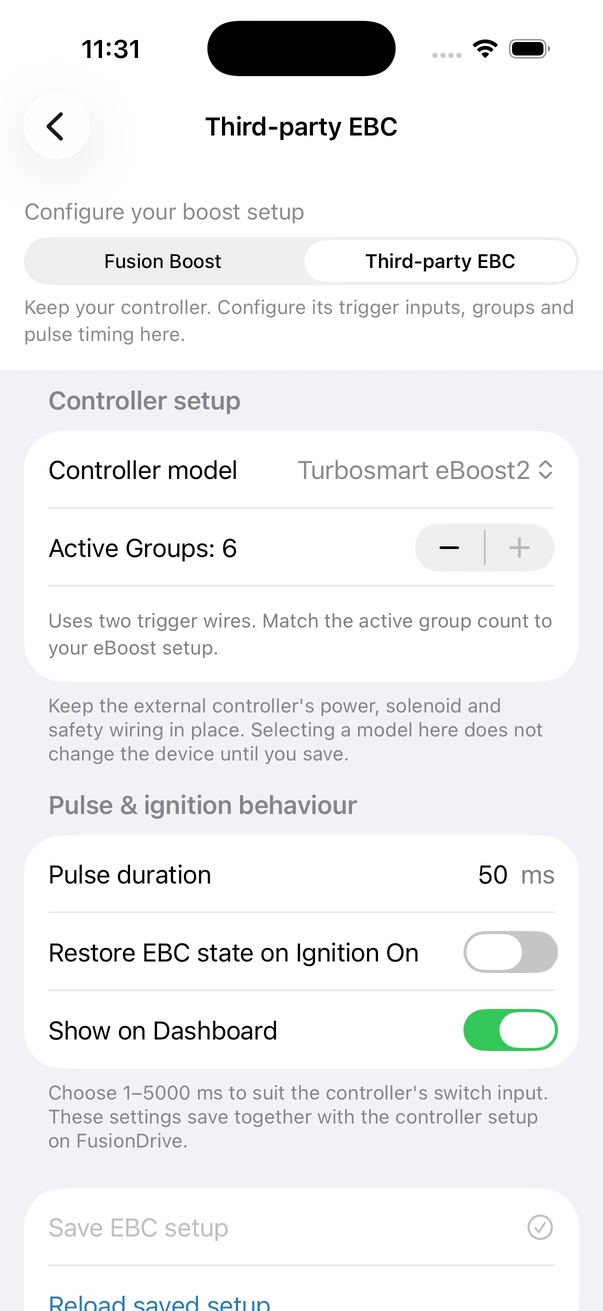
Open More → Boost Control, choose Third-party EBC, then Controller setup. Model, wiring, pulse duration, dashboard visibility and ignition restore are edited as one draft. Tap Save EBC setup and wait for completed device readback before testing. Configure Boost Group Names becomes available after the controller draft is saved; edit the names and tap Save Names. Use Reload saved setup to discard the draft and read FD again. Saved trigger connections shows acknowledged device settings, not the unsaved draft. An error requires reviewing the actual saved state before proceeding. Choosing which setup to view does not activate it, change wiring or transfer output ownership.
A compatible external EBC can keep its own controller/display while FD requests group changes through AUX1 or AUX1+AUX2. These are low-side ground triggers, not OUT1/2 power outputs. Check the controller’s documented input circuit, timing and startup state; named models are pulse presets, not an electrical compatibility guarantee. Fusion Boost is the separate internal control setup below.
| Setting | What it does | Range / Options | Default |
|---|---|---|---|
| EBC Model | Choose a starting pulse preset, then verify the actual controller interface, group count and wiring before applying it. | Not Configured · Turbosmart eBoost3 · Turbosmart eBoost2 · GReddy Profec · HKS EVC-S · AEM Electronics Tru Boost · AEM Electronics Tru Boost X · AMS-500 · GFB G-Force III · GFB D-Force · Apexi AVC-R · Custom EBC | Not Configured |
| Active Groups (eBoost2/3 only) | How many of the controller's groups you actually use. | 2–6 | as model |
| Custom Name (Custom EBC) | Label for an unlisted controller. | Text | Custom EBC |
| Trigger Wires (Custom EBC) | 1 Wire: one pulse line steps up through groups. 2 Wires: separate compatible ground-trigger lines on AUX1 and AUX2. | 1 Wire / 2 Wires | 2 Wires |
| Total Groups (Custom EBC) | Number of presets the controller has. | 2–10 | Set for the controller |
| Enable Looping (Custom EBC, 1-wire) | Stepping past the last group wraps to the first. "Looping cannot be enabled in 2-wire mode." | On / Off | On |
| Configure Boost Group Names | Name each group (e.g. "Low", "Street", "Race"). Save the controller/group draft first, then use Save Names. Names appear on the Controls tab, Dashboard, CarPlay and in automations. | Text per group | Group 1, Group 2… |
| Show on Dashboard | Shows the group selector card on the Dashboard. | On / Off | On |
Review the acknowledged group names after changing a model; do not assume this synchronizes the physical controller. FD cannot read a manual group change or confirm every pulse. Switching groups is described in Controls → External boost controller groups.
Pulse timing and ignition behaviour
| Setting | What it does | Range | Default |
|---|---|---|---|
| EBC Pulse Duration | How long each step pulse holds the controller's wire. Too short and the controller misses steps; too long and it may double-step. | 1–5000 ms, step 1 | 100 ms |
| Restore EBC state on Ignition On | When the ignition comes back, the device sends steps based on the assumed startup group. Verify the EBC starts in the expected group; this is not group readback. | On / Off | Off |
What Boost Control does
FusionDrive commands the duty of a compatible boost-control solenoid. Open-loop mode derives that duty from your base table; closed-loop PID adds feedback correction. Manual mode uses the duty you set. The resulting boost depends on the valve, plumbing, wastegate, turbo and engine—not just a percentage on the screen.
Once acknowledged and saved, controller settings run on the ESP without a phone. The phone supplies configuration, live views and recording. FusionDrive does not reflash the ECU or modify its engine maps.
Before you enable it
- Check the valve and wiring
Match the solenoid's voltage, current, PWM frequency and plumbing to its manufacturer's specification. V1 LS has four high-side OUT channels and two low-side AUX sinks with different electrical capabilities. See Wiring.
- Configure the measurement
Plumb the onboard pressure sensor, or configure a suitable analog, OBD or decoded CAN pressure source. Check its units, gauge/absolute reference, range and freshness before enabling feedback.
- Prepare and assign an output
Open More → Outputs, select the physical output and set its name, load type and switching frequency. Select Solenoid output under Configure Fusion Boost → Connection. The channel must be available for Boost and set to Auto. A preset does not establish electrical compatibility.
- Set the limits and load inputs
Review Max Boost Limit, overboost margin, sensor timeout, invalid-feedback behaviour, warm-up gating and activation/release thresholds. Use limits established for this engine and installation.
- Review the mode, profiles and tables
Begin with a controlled installation check. Save with Save Fusion Boost settings, wait for the device acknowledgement and check the returned settings before enabling.
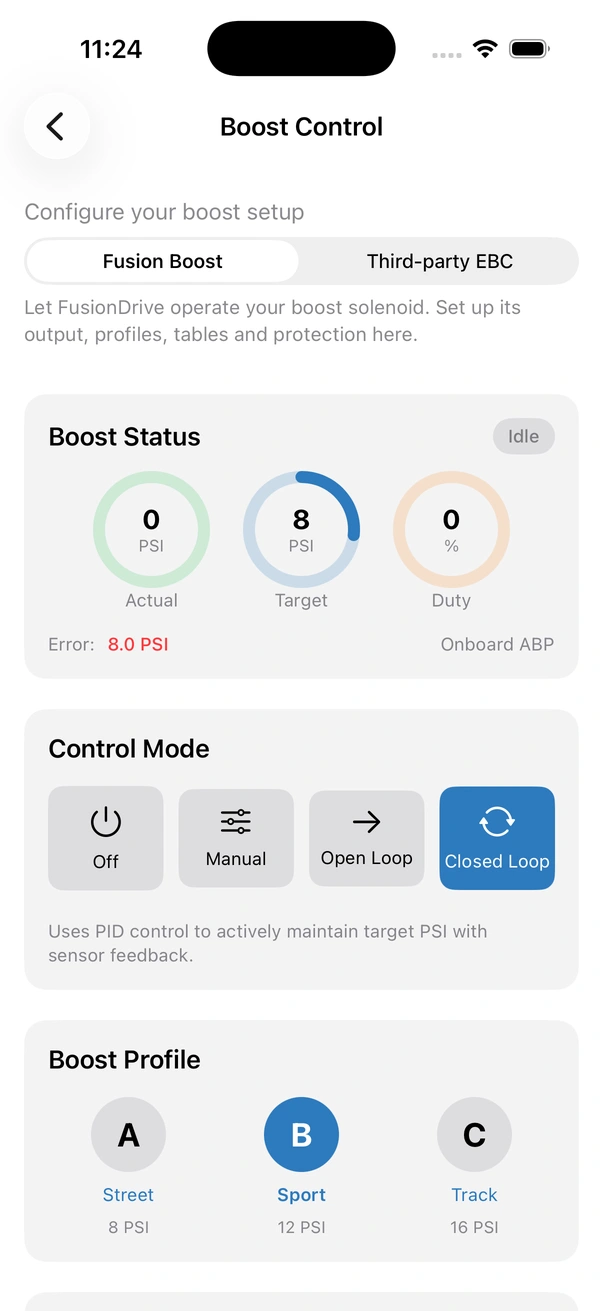
Boost Status card
- Actual: the selected pressure reading, expressed as boost. Check the source and validity indication alongside it.
- Target: the effective target after the selected profile, scheduling strategy and applicable limits.
- Duty: the commanded solenoid duty. The board does not measure solenoid current or prove wastegate movement.
- Error: target minus measured pressure. Use the log to examine changes over a pull.
- State and source: current controller state and feedback identity/availability. A missing or stale signal needs investigation; the response depends on the saved strategy and protection settings.
Live updates depend on the source and Bluetooth delivery. Opening this screen requests faster telemetry; an active recording also manages its own telemetry request.
Saved boost profiles
New compatible firmware starts with three profiles and supports up to eight. Each profile has its own saved name, target and output-enable flag; PID, duty tables and target scheduling are shared controller settings, not separate tunes per profile. Select a profile in Boost Control or the supported Dashboard/CarPlay controls. A profile selection is a real control command; viewing or editing a profile is separate. Profile targets can be set from zero up to Max Boost Limit; a disabled profile does not command positive output.
Use Add profile or Remove last profile under Configure Fusion Boost → Profiles, then use Save Fusion Boost settings and read back. New profiles start with zero target and output permission off. The app honours the connected firmware’s advertised profile limit; older three-profile firmware remains limited to three. Removal is blocked for the active profile or one used by an automation. Test the chosen profile after restart, including Dashboard and CarPlay selection.
For gear, speed and time schedules, the active profile target is a ceiling. The legacy closed-loop RPM target curve instead replaces the profile target while it is selected, with Max Boost Limit still applied. Review which strategy is active before comparing a stored profile value with the live target.
Target Boost
The main slider changes the active profile target from zero to Max Boost Limit in 0.5 psi steps. Quick target buttons above the configured limit are unavailable. The controller works in psi internally; the app can display the selected pressure unit.
Configure Fusion Boost → Tables → Target strategy offers four strategies:
- Profile / existing RPM curve: use the profile target, or enable the legacy 11-point RPM target curve for closed-loop mode only.
- Gear × RPM grid: eight gears, each with 11 points from 0–10,000 RPM. A fresh whole gear number from 1–8 is required; neutral, reverse or unavailable gear does not authorize output.
- Vehicle speed curve: 11 points at 25 km/h intervals from 0–250 km/h. The final point is held above the curve's range.
- Time after load request: 11 points over a configured 100–60,000 ms duration. The timer starts when fresh RPM and throttle meet the activation thresholds; release or missing required data resets it.
Gear, speed and time strategies operate in open- and closed-loop modes and require fresh selected inputs. Their targets are capped by the active profile and Max Boost Limit. Manual duty ignores target scheduling. A configured rise limit smooths target increases; reductions and protective cuts remain immediate.
Control Mode
| Mode | Operation |
|---|---|
| Off | Disables Boost's output command. Whether de-energizing the valve gives spring pressure depends on correct plumbing and functioning hardware. |
| Manual | Uses the selected fixed duty when runtime eligibility permits it. No target regulation. Protection and output ownership still apply. |
| Open Loop | Uses the target-to-duty base table, response setting and allowed learned correction. Pressure is not used for continuous PID correction. |
| Closed Loop | Uses the base duty plus bounded PID correction from valid pressure feedback. PID is the closed-loop mode, not a separate fourth controller. |
Enabling a mode cannot make an unavailable output or invalid configuration ready. Check the device's response and returned state.
Manual duty
The Manual Duty slider sets 0–100% duty. This is a command for controlled valve/plumbing testing, not a guaranteed boost level. Zero de-energizes the assigned valve; 100% fully commands it and can produce unsafe boost depending on the installation.
Manual ignores the target schedule but remains subject to runtime gates, configured feedback behaviour, linked WMI protection and critical overboost cut. Establish safe behaviour with the installation unloaded before any engine-load testing.
Configure Fusion Boost
From More → Boost Control → Fusion Boost, open Configure Fusion Boost. Choose a topic: Connection, Profiles, Tables, PID, Protection or Learning. Tables and Learning are shown for Open Loop and Closed Loop; PID is shown only for Closed Loop. Hidden settings remain stored and shared; selecting a topic does not command the valve.
Save Fusion Boost settings sends the complete advanced draft for validation and storage. A failed save leaves a draft to correct; do not assume the device adopted it.
| Group | Current settings |
|---|---|
| PID Tuning | P, I and D (0–100), correction limit (0–100%), derivative filter (0–1). Zero correction limit disables PID duty correction. |
| Safety | Max Boost Limit (1–50 psi), Mild/Normal/Aggressive response, overboost margin (0–20 psi), sensor timeout (100–5,000 ms) and invalid-feedback policy. |
| Warm-up | Optional warm-coolant requirement and minimum temperature (−40–150 °C). Enabling it requires a valid selected temperature source. |
| Duty Learning | Enable, overshoot tolerance (0.2–5 psi), learning step (0–10%) and maximum learned offset (0–100%). |
| Base Duty by Boost Target | 11 duty points at 5 psi intervals from 0–50 psi. Open loop uses this table; closed loop adds PID correction. |
| Targets and inputs | Legacy RPM curve; gear/RPM, speed or time scheduling; pressure/load/temperature bindings; activation/release thresholds and target-rise limit. |
| Connection and profiles | Solenoid output selects the channel. Profiles stores up to eight names, targets and output-enable flags; the active row opens first. Add profile opens a new row. |
The UI ranges are configuration bounds, not recommended operating values for an engine.
How aggressively it corrects (P, I, D in plain words)
- P: responds to the current difference between target and actual boost.
- I: accumulates persistent error over time.
- D: responds to the rate of change of error; filtering reduces sensitivity to noise.
Correction is bounded by the configured limit. A poor base duty table, slow or noisy feedback, a mechanical fault or unsuitable plumbing cannot be fixed simply by increasing gains. Change one setting at a time in a controlled test and compare target, measured boost and duty in the log. Intelligence findings are prompts to inspect evidence, not an automatic diagnosis.
Safety: Max Boost Limit and the overboost cut
Max Boost Limit bounds configured targets. Runtime overboost recovery reduces duty when measured boost exceeds the limit; measured pressure above Max Boost Limit + the configured overboost margin commands zero duty. The margin is configurable, not always 3 psi.
Missing feedback: an explicit pressure selection cuts output if it is invalid; it never silently substitutes another source. Gear, speed and time strategies also cut when required schedule/load data is unavailable. Positive fallback policies—reduced open-loop duty or hold-last duty—apply only to AUTO pressure with the Profile / existing RPM strategy and the runtime's eligibility checks. Cut output is the default invalid-feedback policy.
Warm-up and load gates: configured coolant, RPM and throttle sources must satisfy their relevant gates. Release thresholds provide hysteresis and must not exceed activation thresholds. Linked WMI protection can reduce the target or cut duty without rewriting the saved profile/table.
A software cut commands a de-energized output. It cannot prove pressure fell, a valve moved or wiring remained intact. Investigate repeated cuts and measurement loss instead of increasing the limit to hide them.
Response Level
Mild, Normal and Aggressive scale the calculated base-duty response (approximately 0.8×, 1.0× and 1.2× before limiting). They do not promise a particular spool time or percentage improvement. Compare the resulting duty and measured boost, alongside the PID and learning settings, before deciding whether the response suits the installation.
Output channel
V1 LS has OUT1–OUT4 high-side 12 V outputs and AUX1/AUX2 low-side sinks. Select a channel whose electrical characteristics suit the solenoid. AUX is nominally 1 A-class and is not an analog-voltage source or isolated contact. The heavy outputs require the documented dedicated fused feed and share the board's supply/thermal limits.
An external ground-triggered EBC uses AUX1 or AUX1+AUX2 for its compatible pulse interface—not OUT1/OUT2. Those channels cannot simultaneously belong to the internal boost controller. WMI, nitrous, retard requests and other controller functions draw from the same six-channel budget; overlapping controller assignments are rejected.
Sensor source
In Configure Fusion Boost → Connection → Shared boost pressure, choose Boost pressure and tap Save shared pressure source. Reload saved source reads it back. This dedicated save changes only the shared pressure selection on FD; WMI uses it too, even while Fusion Boost is off. Choose RPM, throttle and coolant inputs under Connection → Feedback & load inputs. Compatible options come from onboard pressure, configured analog inputs, supported OBD values and decoded CAN signals. A selectable name does not by itself establish correct wiring, calibration or freshness.
- AUTO pressure: retains onboard/OBD arbitration. OBD absolute manifold pressure needs the correct barometric reference; the configured fallback reference may be used when the ECU does not provide one.
- Explicit pressure: binds to that source and validates its identity, quantity, units and age. Configure gauge/absolute reference correctly. Losing that source does not switch control to a different sensor.
- RPM, throttle, gear, speed and warm-up temperature: select valid measurements appropriate to the active strategy. Unknown or stale values are not equivalent to zero or permission to run.
Check actual response rate and sensor range for the feedback source. An OBD PID can be slower than the control loop or clip at its sensor's range. Commanded ECU values are not substitutes for measured feedback.
Learning and overshoot tolerance
Open Configure Fusion Boost → Learning in Open Loop or Closed Loop mode. Enable or disable corrections, set overshoot tolerance, choose the learning step and bound the maximum learned offset. A zero maximum offset removes learned correction.
Learning adjusts the base-duty correction within those bounds; it does not tune the ECU or remove the need to validate the base table. Learned corrections are retained on the device with coalesced storage writes. Review these settings in Boost Control or queue a web configuration change for approval through the connected phone. Current Intelligence findings provide read-only analysis; the controller’s on-device learning is a separate function.
Boost status states and what to do
- Disabled: controller/profile output is disabled, a required assignment/configuration is not ready, or a linked cut prevents operation.
- Idle: enabled but current eligibility is not met. Inspect source validity and gates if output is unexpectedly absent.
- Spooling: an eligible load request is active and the controller is approaching the target.
- On Boost: measured boost has reached the controller's near-target threshold; duty continues to follow the selected mode.
- Overboost Recovery: measured pressure exceeded the limit. Duty is reduced or cut according to severity.
- Cooldown: the load request has released and the state machine is settling back to idle.
A state label describes controller logic, not proof of actuator movement. Review measured pressure, commanded duty, source age and recorded transitions together.
A safe tuning procedure
- Verify the installation with control off
Confirm power, polarity, plumbing, sensor calibration and the actual result of de-energizing the valve.
- Review a conservative configuration
Use engine-specific limits and an appropriate base table. Confirm source-loss, warm-up and linked protection settings with the installer/tuner.
- Save and read back
Check that the ESP acknowledged the settings and owns the intended output.
- Record controlled tests
Choose target, actual pressure, duty, RPM/throttle and relevant fuel/temperature channels. Check acquisition gaps as well as the curve.
- Change one variable, then repeat
Inspect the measured result before increasing load. Stop and investigate unexpected pressure, stale measurements or repeated protection activity.
Simple setup, full advanced control
Choose your third-party controller or Fusion Boost first. Third-party setup presents only supported group/trigger behavior and the associated wiring. Fusion Boost offers editable starting settings, profiles and manual/open-loop/closed-loop operation; PID is closed-loop control. Advanced setup contains source selection, schedules, tables, learning and protections. Use named profile controls on Controls or Dashboard. Fusion Boost saves its control mode, manual-duty setting and enabled configuration; these may resume after restart when its configured gates permit. Use Stop or disable the controller before leaving a setup that must stay inactive. If the onboard pressure hose is not connected, select the OBD pressure source in setup: a working sensor at atmospheric pressure cannot detect a missing hose. OBD pressure uses MAP minus the available barometric reference; freshness and compatibility still matter.
Related
- Wiring — V1 LS output polarity and power.
- Outputs — presets and assignments.
- CAN & OBD — configured measurements.
- Data Logging — compare targets, measurements and events.
- Water/meth & Nitrous — shared outputs and protection.