
Data Logging
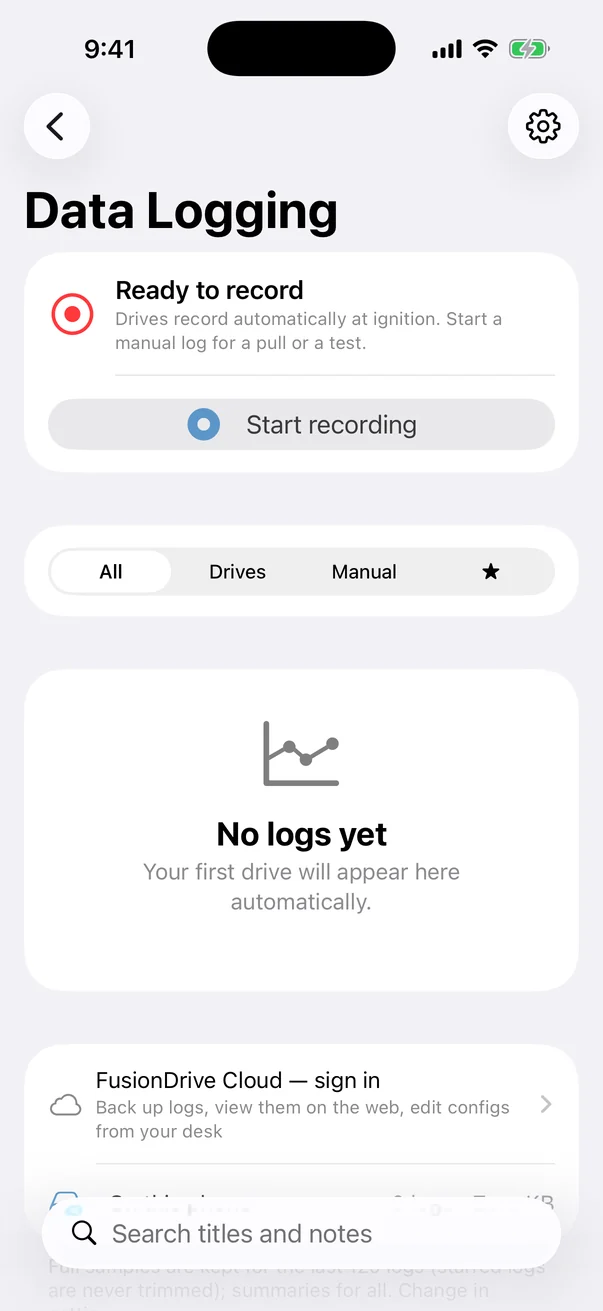
Record the available signals that matter to your setup: vehicle data, calibrated inputs, controller targets, output commands and events. Review them together, export a log or share an uploaded recording with your tuner. Open More → Data Logging or the Dashboard's Recording card. Local recording does not require a Cloud account.
How logging works
- The phone records the log. FusionDrive streams telemetry over Bluetooth; the connected app stores samples and events. Without the phone, this recording is not collected. The ESP still runs its saved controllers/automations and retains its separate configured device statistics.
- Drive and Manual logs. Enabled ignition-based recording starts Drive logs while the app is connected and able to receive data. Manual logs start and stop on your command. Automatic recording cannot guarantee every drive if the phone is absent or iOS suspends it.
- Requested versus achieved rate. Active choices are 5, 10, 20 and 50 Hz; idle choices are 1, 2 and 5 Hz. The recorder requests its own telemetry cadence independently of the live screen.
- Samples and events serve different purposes. Samples record selected values; events mark reported transitions, alerts and your markers. Their timestamps aid comparison, not a claim that all sources were measured simultaneously.
Phone receipt timing, ESP uptime/sequence evidence, source ages and detected gaps describe acquisition quality. Faster recording cannot make a slow ECU or multiplexed analog input update faster. Duplicate telemetry frames do not manufacture extra samples.
Record card
The Record card shows recording state, elapsed time, sample count, selected rates/channel count and achieved recording information. Start/Stop controls a manual log. Marker adds a timestamped note such as “third-gear pull” or “heard a noise”; optional haptics confirm the action. The gear button opens Logging settings.
Check that recording is active before a test. The saved file and actual sample count provide better evidence than simply having a live gauge on screen.
Live trace
The rolling live trace helps check that available pressure, RPM, throttle, input and duty channels respond. On/off values use steps; numeric values use lines. A moving preview is separate from starting a saved recording, and interpolated chart lines do not imply extra measurements.
The log list
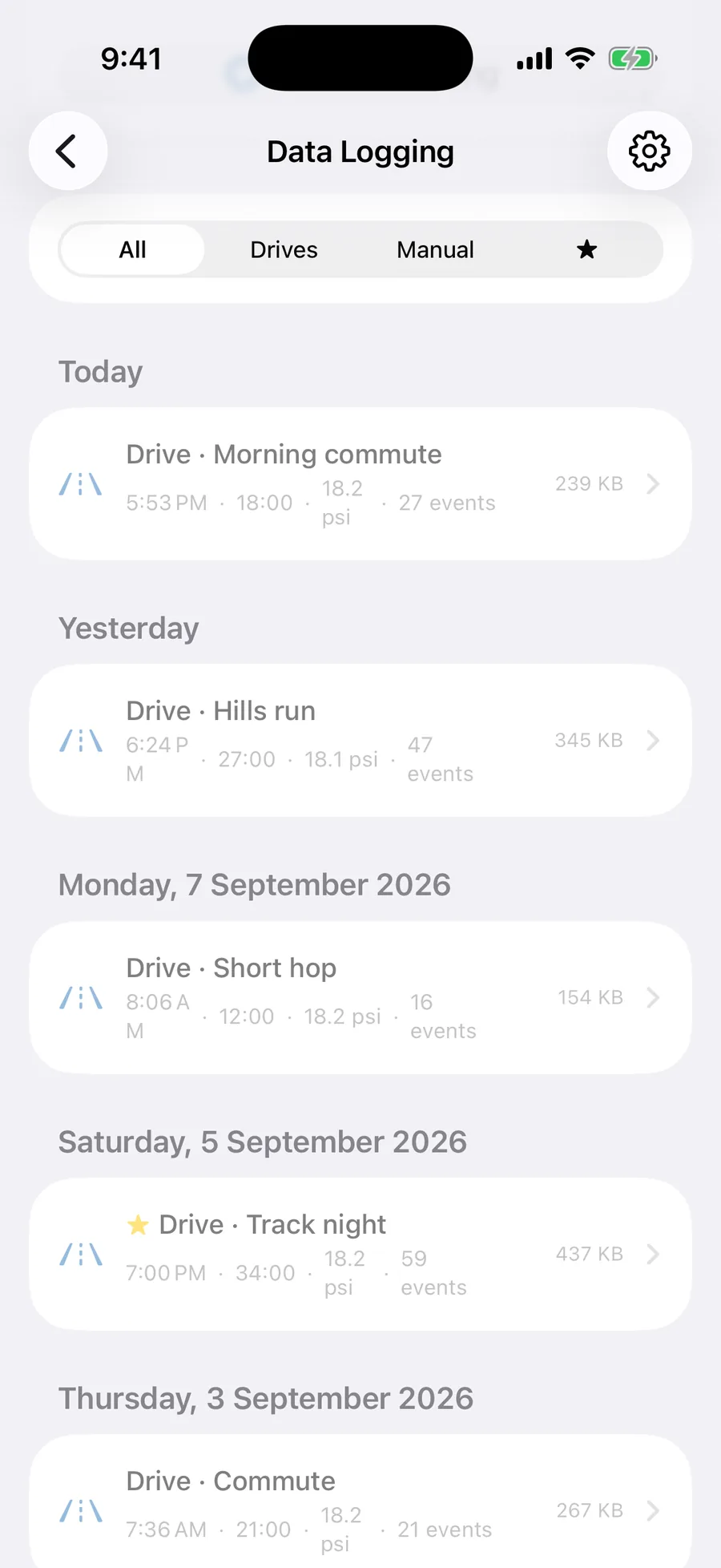
Filter by All, Drive, Manual or Favourites and search titles/notes/tags. Logs are grouped by day. Each row summarizes the recording and its Cloud state; open it for full detail. Available row actions include favourite, delete and upload. The footer reports local storage use.
A Cloud icon reflects transfer status, not proof that a local file still has every original sample after trimming. Keep important logs starred and verify a backup/export before removing local data.
Log detail
Open a log for its device/firmware context, summary, selected chart lanes, cursor values, event timeline and notes. Rename, choose channels, export/share, favourite or delete from its controls. The viewer uses the data that was actually recorded; selecting a channel later cannot recover values excluded during acquisition.
Summary
Summaries include available peak boost, maximum RPM/speed, estimated distance, time on boost, pull/overshoot counts, recorded protection events, temperatures, voltage and rule activity. These are indicators derived from the recording and its coverage.
A voltage dip or pressure change is a reason to inspect the evidence, not a diagnosis by itself. Missing channels and interrupted acquisition limit what a summary can tell you.
Chart, zoom and scrub
- Use selected channels in aligned lanes with units. Pan, zoom, place a cursor and scrub the recording; event markers help jump to a reported transition.
- Compare boost target, actual pressure and commanded duty with available RPM, throttle, fuel or temperature data.
- Compare external-controller demand with measured WMI flow/pressure, or nitrous stage activity with measured fuel pressure and mixture—when those sources were installed and recorded.
- The current phone detail view displays up to 12 chosen lanes at a time. Narrow the selection for readability; the log can contain more channels.
The cursor reports values from the stored sample series. Check source age, gaps and changing acquisition rate before interpreting event order. A common timeline does not establish same-millisecond measurement across the ECU, analog sensors and accessories.
View presets
Built-in selections include Everything, Boost tuning, Engine health, Outputs & rules, Wired inputs and Electrical. Only available recorded channels can appear. Custom selections let you return to a useful combination; manage saved presets in Logging settings.
A preset organizes the view. It does not add a physical measurement: an output duty channel remains a command, and a pressure channel is only measured pressure if the configured source supplies it.
Event timeline
The timeline places recorded events alongside the sample history: automation activity, output/controller transitions, WMI and nitrous states, sensor availability changes, ignition/CAN changes, alerts and manual markers as reported by the device/app.
Modern device events identify a runtime transition with its available index/value and timing metadata. They do not provide an exact causal explanation for every change. Use the associated measurements and configuration to investigate; do not interpret a generic state event as proof of why an ECU or external controller acted.
Raw CAN entries are retained as diagnostic data and kept separate from the human/automation event narrative used in Intelligence.
Titles, notes and favourites
Give a test a useful title, add setup/context notes, and star important recordings. Favourites are excluded from automatic sample trimming. Notes are stored locally and accompany an upload; editing a local note does not by itself prove an already-uploaded copy was updated.
Export and share
Use Export/share to open the iOS share sheet for AirDrop, Files or another app.
- CSV: a samples file with relative time, timestamp, channel names and matching preferred display units; when events exist, an additional events CSV is exported. Empty values remain missing rather than becoming zero.
- JSON: the FusionDrive log envelope, metadata, summary, sample series and events. This preserves more structured detail for archiving and supported import.
- Cloud link: upload first, then create a sharing link through the supported app/web controls. Share only recordings you intend the recipient to see.
Raw CAN receive records remain part of saved/exported log evidence. A CSV workflow and a structured JSON archive serve different purposes; neither turns a sampled log into a lossless bus trace.
Logging settings
| Setting | Current behaviour |
|---|---|
| Record every channel | Records the available decoded/status/quality catalogue. Disable it to select channels explicitly. Optional latest raw CAN bytes are separate from individual frame capture. |
| Active rate | 5, 10, 20 or 50 Hz requested; default 20 Hz. Activity includes configured boost/load/controller/rule activity. The achieved rate can be lower. |
| Idle rate | 1, 2 or 5 Hz; default 2 Hz. |
| Start a drive log at ignition | Automatic Drive recording while connected and receiving. Default on. |
| Stop after engine off | 5–300 seconds of grace; default 20 seconds. |
| Discard short drives | 10–600 seconds minimum automatic duration; default 60 seconds. |
| Haptic on marker | Optional confirmation vibration. |
| Keep samples for | 10–1,000 recent logs; default 120. Starred logs are exempt from trimming. |
| Open logs with | Default built-in/custom view selection. |
Raw CAN receive journal: explicitly enable individual-frame recording; choose CAN1, CAN2 or both, enabled-registry filtering, a global interval and a 100–10,000-frame cap per log. Options apply to the next recording. The ESP repeats a 32-frame window and the phone deduplicates it. Loss counters distinguish missed sequences, deliberate sampling/skips, buffer pressure and the phone cap.
Raw capture is a renewable recording lease, not a permanent device-operating setting. It does not change polling or transmit traffic. The separate Include latest raw CAN bytes option samples latest-frame values and is not equivalent to the receive journal.
Choosing channels
- Inputs: configured IN1–IN6, onboard pressure and relevant signal-quality fields.
- Engine/OBD and CAN: enabled supported ECU values and configured decoded signals, retaining their source identities and availability.
- Outputs and Boost: output commands/duty, effective targets, pressure feedback, profile, controller state and relevant configuration/status.
- WMI: duty/demand, installed flow/pressure/level measurements and delivery, grace, recovery or fault state where provided.
- Nitrous: profile and individual-stage state, nitrous/fuel duty, timing and retard-request state.
- Automations/System: rule activity, ignition, CAN status, external-EBC command state and the other reported system channels.
Third-party equipment is covered through the compatible signals it exposes and you configure. Commanded pump duty, solenoid state or retard request does not prove fluid delivery, electrical continuity or actual ignition retard. Missing measurements remain unavailable.
Storage and trimming
Trimming keeps the configured recent logs' full sample data and preserves older summaries/events. Starred logs are exempt. Use Trim now to apply that policy; Delete all logs is a separate confirmed deletion of phone-local logs.
Successfully uploaded Cloud copies are separate from local trimming/deletion. Verify upload completion or export an important recording before depending on that copy. Local recording settings and files live on the phone; the ESP's saved controller/automation configuration remains on the device.
Cloud upload
A local account-free log can be uploaded after signing in with the relevant Cloud access. Auto-sync controls automatic transfer; manual upload controls are also available. Cellular use follows the saved Cloud network preference—do not assume the default is Wi-Fi only. Disabling cellular prevents new covered transfers from using it; it does not cancel a transfer already in progress.
The portal provides uploaded-log charts, channel selection, events, export/sharing and available Intelligence views. An uploaded log is a stored recording, not a continuous remote live connection to the car. See FusionDrive Cloud.
Recording at a glance
The logging card appears on the Dashboard by default; its settings allow you to hide it. Logs retain source measurements and controller events, while preferred units change their presentation. Only available, configured and recorded channels can be overlaid; a missing sensor or unreported third-party state cannot be reconstructed as a measurement.
Related
- Boost Control — target, pressure and duty comparisons.
- CAN signal definitions — identify the measurements you record.
- Intelligence — inspect recorded evidence.
- Cloud — uploaded logs and sharing.
- Automations — saved rules and recorded transitions.