
FusionDrive Cloud account
Review your linked devices, recorded logs and settings in the app and online. An account is optional for local use; Cloud adds syncing, sharing and account services. Open More → FusionDrive Cloud or sign in to the web portal.
What the account gives you
- Backup of selected finished logs and supported configuration snapshots according to your sync preferences and account access.
- The web viewer — a full-screen log workbench in your browser, device pages with health and configuration, and the ability to edit settings from a desk and push them to the car.
- Several devices in one place, each with its own name, logs and configuration.
- Deeper analysis with eligible Cloud access: longer-history health indicators, channel trends and AI explanations of recorded evidence, uncertainties and checks. See Cloud Intelligence.
- A home for Intelligence add-ons — Advise and Assist licences live on the account so you keep them when you change cars; Cloud Intelligence is subscribed per account.
- Restore — pull a log back to a new phone, or one you trimmed off this one.
Create an account / sign in
- Open More → FusionDrive Cloud
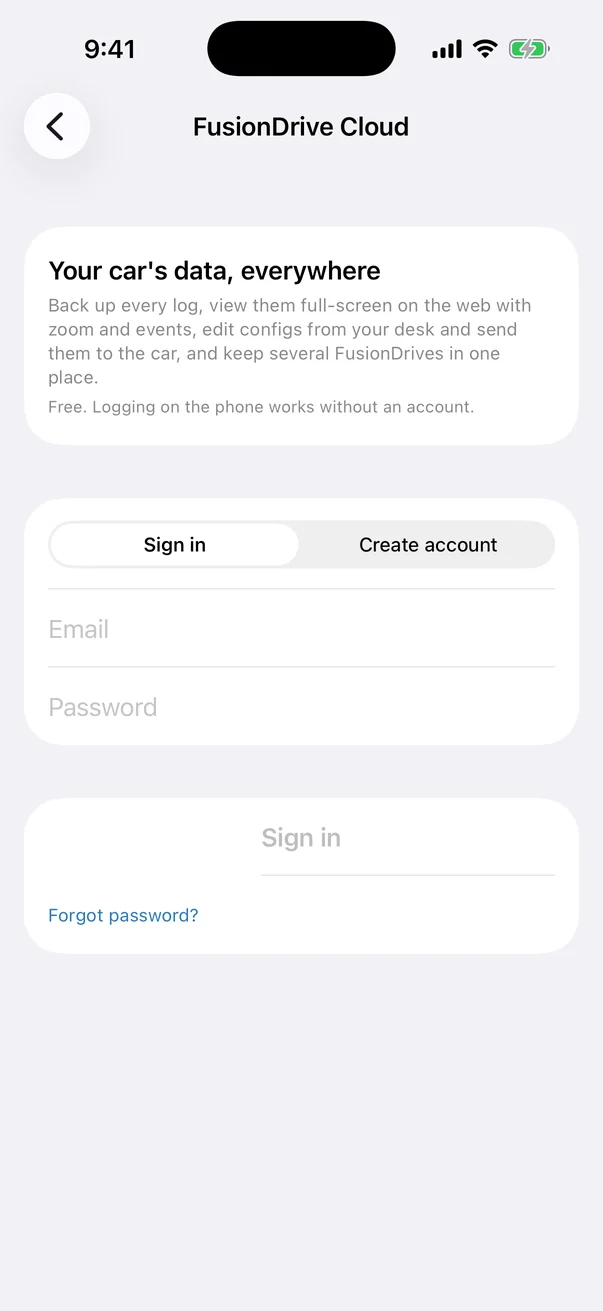
Not signed in, the screen explains the benefits and shows a form with a Sign in / Create account switch.
- Create account
Name, Email and a password. The email is your login and where password resets go.
- Sign in
Email and password. Forgot password? sends a reset link: "If that address has an account, a reset link is on its way."
- You are in
The screen switches to the account view below. Sign-in persists until you sign out.
The same email and password sign you into the web portal (Open web portal link at the top of the account screen).
The FusionDrive Cloud screen
| Section | Contents |
|---|---|
| Account | Your name and email; Open web portal. |
| Sync | Auto-sync and Sync on cellular toggles, Waiting to upload count, upload progress, Sync now, Last sync time. |
| Web changes | "N changes from the web to review" — opens Pending changes. |
| Restore | Logs in the cloud — "Pull a log from another phone or one you trimmed off this one." |
| Intelligence | Cloud Intelligence status with Subscribe, your Advise/Assist licences and which device each is on, Get Advise or Assist for a device. |
| Devices | Every device on the account with name, serial, last seen, pending-change badge; Add this device (serial) when connected to one that is not yet on the account. |
| Account actions | Sign out, Delete account… |
Adding (claiming) a device
"A device can only be added while your phone is connected to it. Several devices can live in one account."
- Connect to the FusionDrive over Bluetooth
The Devices section shows Add this device (serial). If not connected: "Connect to your FusionDrive to add it to your account."
- Tap Add this device
The device hands the app a one-time claim code over the Bluetooth link — proof that you are physically with the car — and the app registers the serial to your account. Nothing to type.
- Done
The device appears in the list. Its configuration is uploaded on the next sync, and Intelligence licences can now be assigned to it.
If someone else already owns it you will see: "This device is claimed by another account. Ask them to release it (app or web), or contact support." Second-hand devices must be released by the previous owner before you can add them.
Several devices
Tap a device in the list to:
- Name it (the name shows in the list, on the web and in the app header — separate from the Bluetooth name set in Settings → Device Name).
- Open on the web — its device page in the portal.
- See pending changes waiting for it.
- Release from my account — see below.
Logs, configuration backups and Intelligence sessions are stored per device serial, so cars never get mixed up.
Releasing a device
"Releasing lets someone else claim it. Logs already uploaded stay in your account, and any Advise/Assist licence on it comes back to you to move onto another device." Do this when you sell the car or the device. Releasing does not touch the device itself — its settings stay as they are until the new owner factory-resets or reconfigures it.
Licences and Cloud Intelligence
"Add-ons are yours, not the device's: each unlocks one device at a time and can be moved to another of your devices (one move per 30 days, waived when you release the old one). Cloud Intelligence covers every device on the account."
| Item | Detail |
|---|---|
| Advise / Assist licence | One-time purchase through your Apple ID. Held on the account. Shows which device it is assigned to and, if recently moved, "Can move again date". |
| Move a licence | Connect to the target device and choose Move Advise here / Move Assist here in the store sheet (Intelligence → Unlock, or FusionDrive Cloud → Get Advise or Assist for a device). "It will stop working on old device. Licences can move again after 30 days." The 30-day lock is waived when you release the old device first. |
| Unassign | Detaches the licence from its device without assigning it elsewhere. |
| Cloud Intelligence | Monthly or yearly subscription via your Apple ID, as offered at purchase, covering the devices on your account. Status shows Renews or Until a date. Cancel in iOS Settings → Apple ID → Subscriptions. |
| Purchases made before signing in | Register to your account automatically the first time you sign in. |
What each tier does is described in Intelligence → Tiers.
Auto-sync and what syncs
| Setting | What it does | Options | Default |
|---|---|---|---|
| Auto-sync | "With auto-sync on, every finished log and every config change on your device is copied to your account. Turn it off to upload logs one at a time." | On / Off | On |
| Sync on cellular | Allow uploads on mobile data. Off means uploads wait for Wi-Fi. Disabled when Auto-sync is off. | On / Off | On |
| Sync now | Uploads everything waiting and refreshes account data. | — | — |
What is uploaded, per device:
- Data logs — every finished log (samples, events, summary, title, notes). Manual uploads: swipe a log → Upload, or the Upload button in log detail.
- Configuration — outputs, sensors, automations, boost, water/meth, nitrous, OBD labels and decode rules, whenever they change. This is what the web portal shows and edits.
- Car profile and Intelligence drive sessions — when Sync to FusionDrive server is on in Intelligence → Plan, sync & data.
- Basic device status — only if Share basic device status is on in Update service & privacy (see Settings); independent of the account.
Not uploaded: Wi-Fi passwords, your location (never collected), phone contacts or anything outside the app.
Pending changes from the web
On the web portal you can edit a device's configuration — boost targets, output settings, automations — from a desk. The edit does not reach the car directly; it becomes a pending change that the app applies over Bluetooth.
- Notice
The Dashboard shows a Pending web changes banner and FusionDrive Cloud shows "N changes from the web to review". The device row shows an orange badge.
- Review
Each change lists its title, the device serial, when it was created, and a diff against what the device has right now — or "No differences from what the device has now." if the car already matches.
- Apply to car
Available when connected to that device ("Connect to serial to apply." otherwise). The app sends the reviewed changes and waits for FD acknowledgement/readback before recording them as applied. Stale or conflicting revisions require review again.
- Reject
Discards the change. Nothing is written.
"Edits you make on the web show up here." Nothing you do on the web changes the car until you apply it in the app, with the phone next to the car — so a web session cannot surprise you while driving.
The web viewer and log workbench
Sign in at the portal (link in the app). You will find:
- Home — your devices, last seen, health at a glance, an Intelligence brief when Cloud Intelligence is active.
- Device page — configuration as last synced (editable → pending change), health check and channel trends, recent logs, firmware version.
- Logs — every uploaded log with search; click to open the workbench.
- Account — profile photo, preferences, devices, licences and provider-specific billing controls. Reservations show deposits, payment status, receipts, order history and available tracking; support requests can link to an order.
The log workbench is a full-screen analysis view:
- Multiple panes; drag channels from the channel library into a pane or onto the "new pane" strip; one-pane-per-channel or everything overlaid; resize, rename and reorder panes.
- Mouse: drag on a chart to zoom, wheel to zoom at the cursor, shift+drag to pan, click to seek, double-click to fit.
- Playback: play/pause, step by 1 s or one sample, speed control, loop the window or an A–B range; previous/next event; markers A and B; zoom to A–B.
- Events drawn over the charts; an inspector showing every channel's value at the cursor with Copy values.
- Views: the same presets as the app plus layouts saved in your browser. "The URL always carries your exact layout, window and markers — copy it to share what you see."
- Edit title and notes; delete from the cloud.
Sharing a log
In the workbench, press Share. The log gets a read-only public link — "Anyone with this link can view" — shown in a box you can copy. Recipients see the log with a banner "Shared FusionDrive log · read-only" and do not need an account. Press Sharing on again to turn sharing off and invalidate the link. Copy link to this exact view in the view menu copies a link that also carries your pane layout, time window and markers, so a tuner opens exactly what you were looking at.
Restoring logs
FusionDrive Cloud → Logs in the cloud lists every uploaded log for your devices. Tap one to download it back to this phone — useful after changing phones, or for a log whose samples were trimmed locally. Downloaded logs behave like any other in Data Logging.
Sign out and delete account
Sign out ends the phone’s account session and stops that account’s sync. Saved device operation and local logs are separate.
Manage billing: use the provider shown beside the purchase. Apple subscriptions and refund requests are managed through Apple; the portal supplies the appropriate link. Web payments expose the available Stripe receipt/payment-management actions. Cancelling a subscription, requesting an order cancellation and deleting an account are different actions.
Delete account: review the confirmation in the app or portal. It removes account access and the deletable Cloud data shown there; local phone logs and saved FD configuration are separate. Active Apple subscriptions require provider cancellation. Order/payment records that must be retained are not a promise to erase every financial record.
Privacy
- Data is keyed by device serial and your account email. No location is ever collected by the app.
- Wi-Fi credentials used for firmware updates stay on the device and are never uploaded.
- Fleet benchmarks use anonymised aggregates; other users cannot see your logs unless you share a link.
- Shared links are public to anyone holding the link until you switch sharing off.
- You can manage and delete your log data — locally (Data Logging → Delete all logs; Intelligence → Delete all Intelligence data) and in the cloud (Delete account).